Dibsido uses one Slack app, called Dibsido (a bot). You install it once for the whole Slack workspace. People can book desks and parking in Slack, see who is in the office, check in, and get notifications as direct messages from the bot.
Only a Dibsido administrator can install the app.
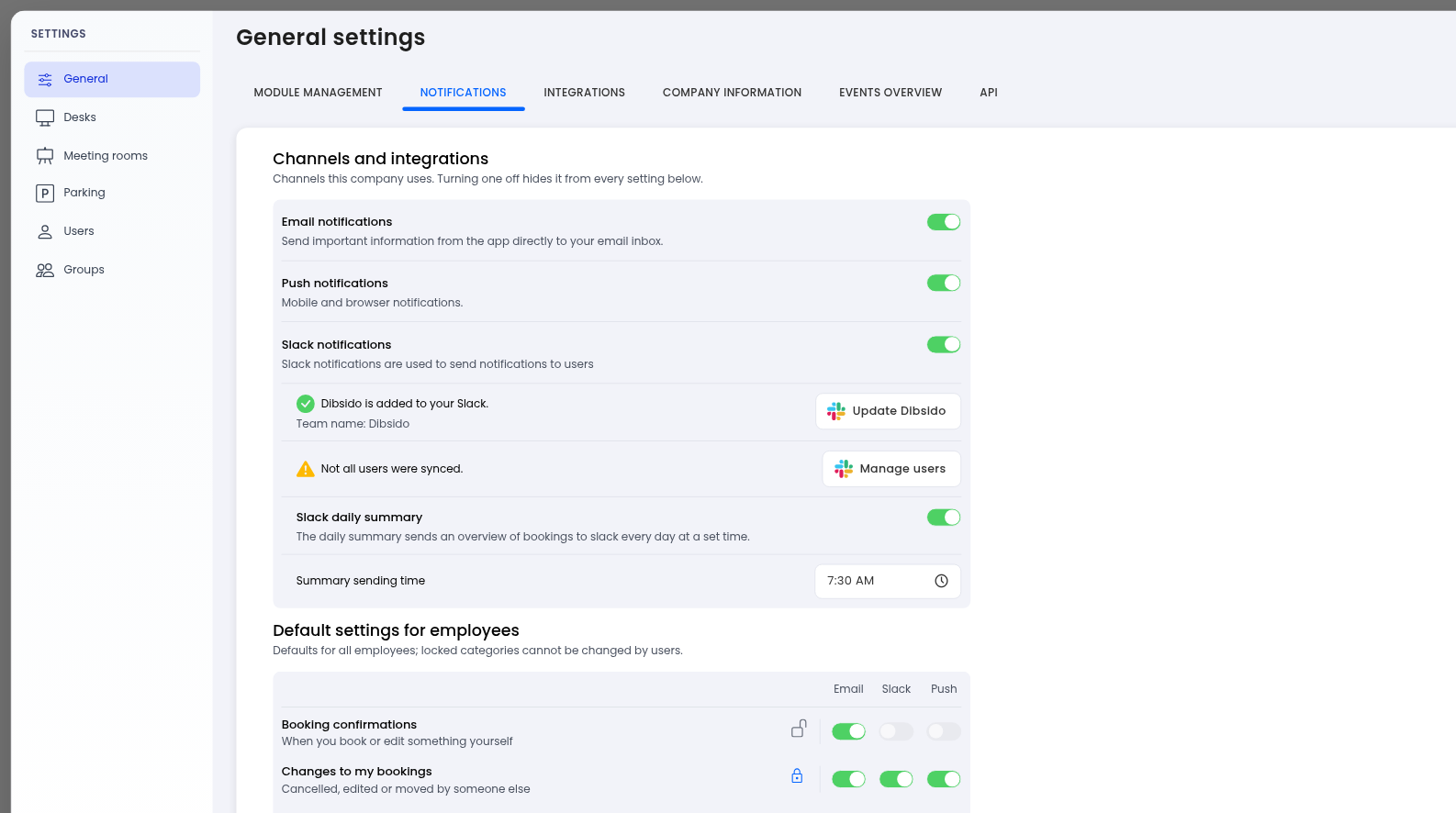
Go to Settings > General > Notifications. Open the Channels and integrations section.
Turn on Slack notifications.
Click Add Dibsido to Slack and approve the consent screen in Slack.
After approval, Dibsido matches Slack members to Dibsido users by email, using the primary email first and then the login alias. The person who installed the app receives a welcome direct message from the bot.
If some people were not matched, you may see the message Not all users were synced. Click Manage users to open a table of Slack IDs, then use Sync when people join Slack later.
Optionally, turn on Slack daily summary and choose a send time.
In your personal settings you can turn Slack notifications on or off. This option appears only when your company has Slack enabled and installed. You must be matched to a Slack account. If you are not, the bot replies: Your Slack account is not linked.
Commands are in English.
/dibs: a week overview for 7 days, with your desk and parking for each day and a Book button
/dibs desk [date]: books a desk. The spot is assigned automatically
/dibs parking [date]: books a parking spot. The spot is assigned automatically
/dibs cancel: a list of your reservations with Cancel buttons, including a confirmation
/dibs whosin [date]: who is in the office that day
The date can be today, tomorrow, an English weekday name such as friday, or a specific date. If you leave the date out, tomorrow is used. Today follows the company time zone. Slower commands first reply Loading… and then post the result.
Open the Dibsido app in Slack to use the Home tab. It shows today, the next working day, and a week overview if your company uses desks, plus quick actions and help. The buttons are Book, Cancel, Check-in, Who's in, and View all.
The tab refreshes when you open it, or after you take an action in Slack. A booking you make on the web appears the next time you open the tab.
Notifications are always direct messages from the bot. They include:
Cancellations of a desk, parking, meeting room, car, or guest reservation, and a move to another spot
A spot became free, or was booked automatically from the waiting list
Reminders for upcoming desk, parking, or meeting room reservations, and the reminder to book
The check-in window opened, with a Check-in button, and check-in expired, for desks and parking
A guest arrived, or a package arrived
For administrators and fleet managers: a reported issue, a parking or desk collision, a new car reservation, or a car change
At the set time, everyone who has Slack notifications turned on and has a reservation receives a summary, in Czech or English.
Only desks and parking can be booked in Slack. Meeting rooms and cars appear in notifications only.
Commands are in English.
If a module is turned off or unpaid, or the company is locked, Slack will not book and tells the user to contact their administrator.
