The Team Schedule module provides a calendar overview of your entire team's daily status. At a glance, you can see who is in the office, who is working from home, who is on vacation, and more. It is the go-to tool for understanding where your colleagues are and planning your office days accordingly.
We recommend enabling Team Schedule for every company that uses the Desk Booking module, as the two work hand in hand to give your team full visibility into office attendance.
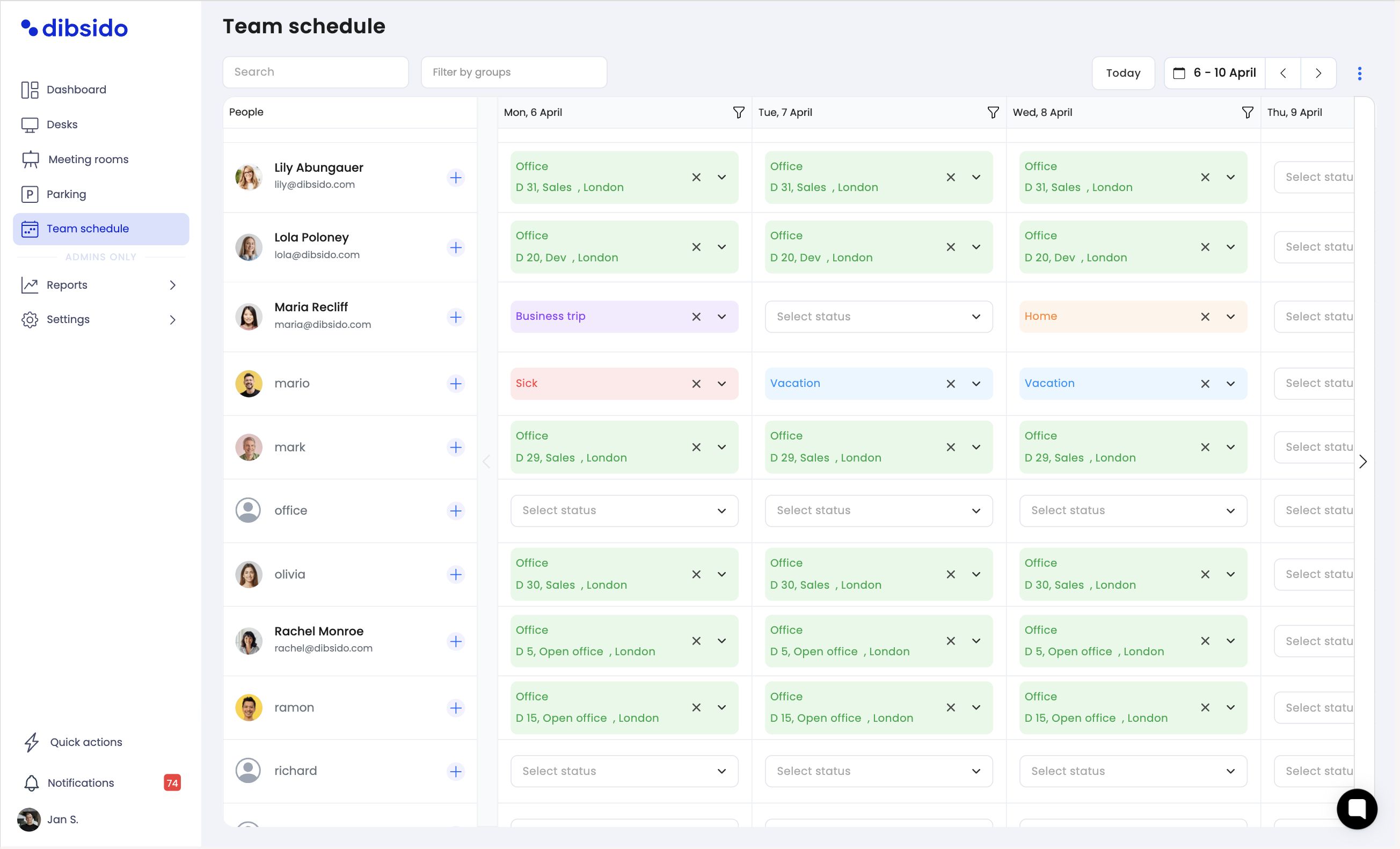
Team Schedule displays a calendar view with all your colleagues listed and their status for each day. The possible statuses include pre-defined options such as:
In the office - automatically set when an employee has a desk reservation. The schedule also shows which desk they are sitting at.
Working from home
Business trip
Vacation
Sick leave
Other with option to add note
These are just the default statuses. Your company can customize them by hiding pre-defined statuses that are not relevant or adding custom statuses that match your specific workflows and policies.
For employees:
Employees can set their own status for any upcoming day. They can only add statuses for themselves and only into the future. When an employee creates a desk reservation, their status is automatically updated to "In the office" for that day, so there is no need to set it manually.
Other colleagues can view everyone's statuses in the calendar, but they cannot edit anyone else's status.
For administrators and operators:
Administrators and operators have full control over the schedule. They can view and edit statuses for any employee, including setting statuses retroactively into the past. This is useful for correcting attendance records or filling in statuses after the fact.
If your organization uses groups, you can control which colleagues employees see in the Team Schedule. By default, employees can see all users across the organization. However, you can restrict visibility so that employees only see members of their own group.
This setting is only relevant when groups are configured in your organization. If no groups are set up, all employees will see the full team schedule regardless of this setting.
Team Schedule data can be exported from the application, allowing you to create attendance records, track office presence over time, or integrate the data into your company's HR or payroll processes.
The status options in Team Schedule are fully customizable:
Hide default statuses: If certain pre-defined statuses are not relevant to your organization, you can hide them so they do not appear as options for employees.
Add custom statuses: Create new statuses that reflect your company's specific needs, such as "Client visit," "Training," or "Conference."
The Team Schedule module is active by default when the Desk Booking module is enabled. If you need to turn it on or off:
Navigate to settings: Go to the settings menu in Dibsido.
Select General: Open the "General" settings section.
Find Team Schedule: Locate the Team Schedule module toggle.
Enable or disable: Toggle the module on or off as needed.
Team Schedule gives your team a clear calendar overview of who is where and what they are doing each day. Statuses are set automatically when desk reservations are made, and employees can manually add their own statuses for future days. Administrators have full control, including the ability to edit past records and export attendance data. Customize the available statuses to fit your company's needs and enable the module in the General settings.
