
Team Schedule comes with a set of pre-defined statuses, but every organization works differently. You can fully customize the available statuses by creating new ones that match your company's workflows and hiding default ones that you do not need.
Pre-defined statuses
Team Schedule includes the following statuses by default:
Office - automatically applied when an employee has a desk reservation. This status cannot be hidden.
Home - can be hidden.
Business trip - can be hidden.
Vacation - can be hidden.
Sick - can be hidden.
Other - a special status that allows employees to add a custom note. When an employee selects "Other," they can type a short note describing what they are doing, and this note will be visible to colleagues alongside the status.
Hiding pre-defined statuses
If certain default statuses are not relevant to your organization, you can hide them so they no longer appear as options for employees.
Navigate to settings: Go to the settings menu in Dibsido.
Select General: Open the "General" settings section.
Find Team Schedule: Locate the Team Schedule settings box.
Click Manage: Click the "Manage" button to open the status management dialog.
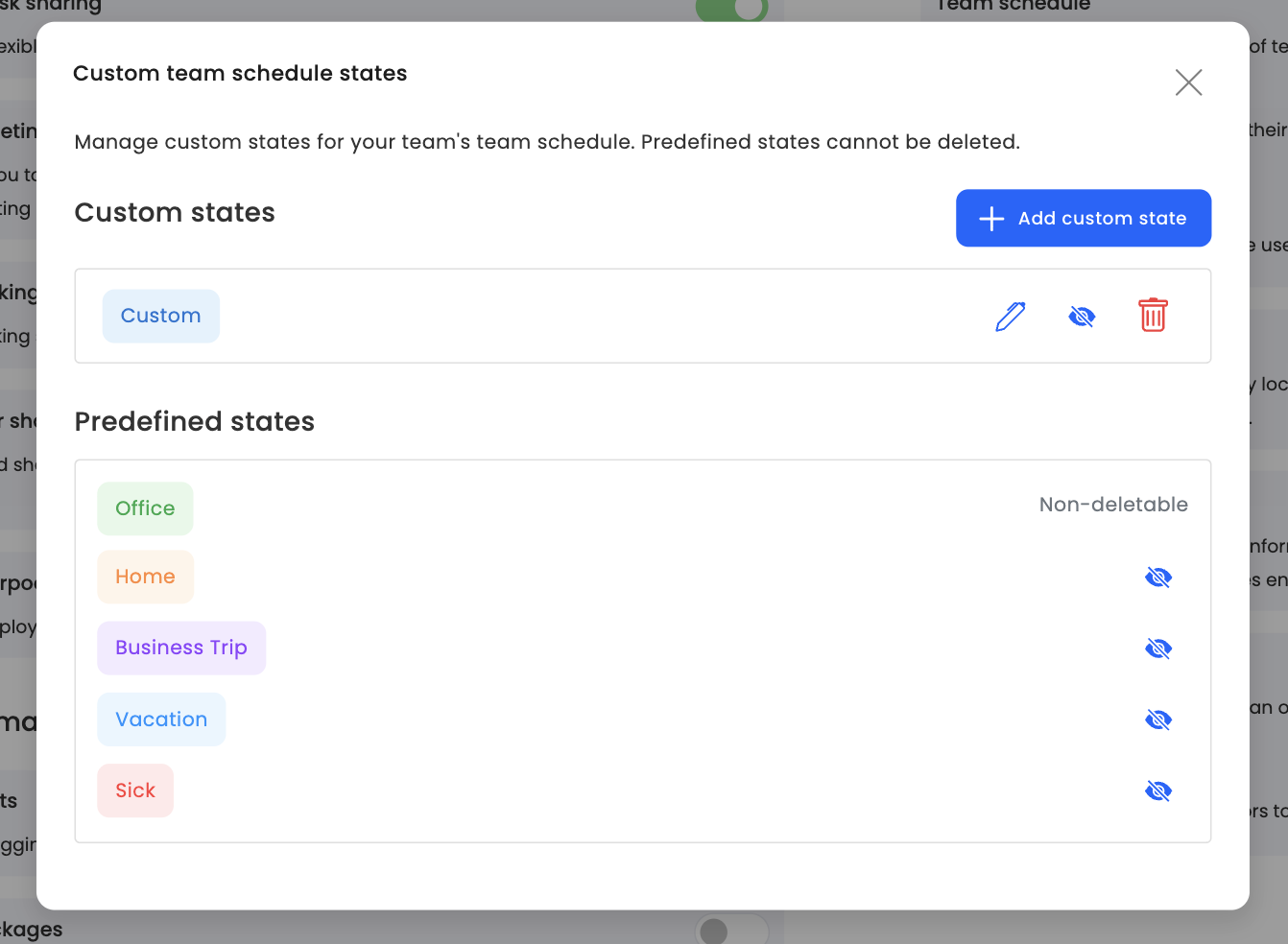
Hide statuses: In the dialog, you will see the list of pre-defined statuses. Toggle off any status you want to hide.
Note: The "Office" status cannot be hidden, as it is automatically set based on desk reservations.
Adding custom statuses
You can create new statuses that reflect your company's specific needs, such as "Client visit," "Training," "Conference," or anything else.
Open the Manage dialog: Go to Settings > General > Team Schedule and click "Manage."
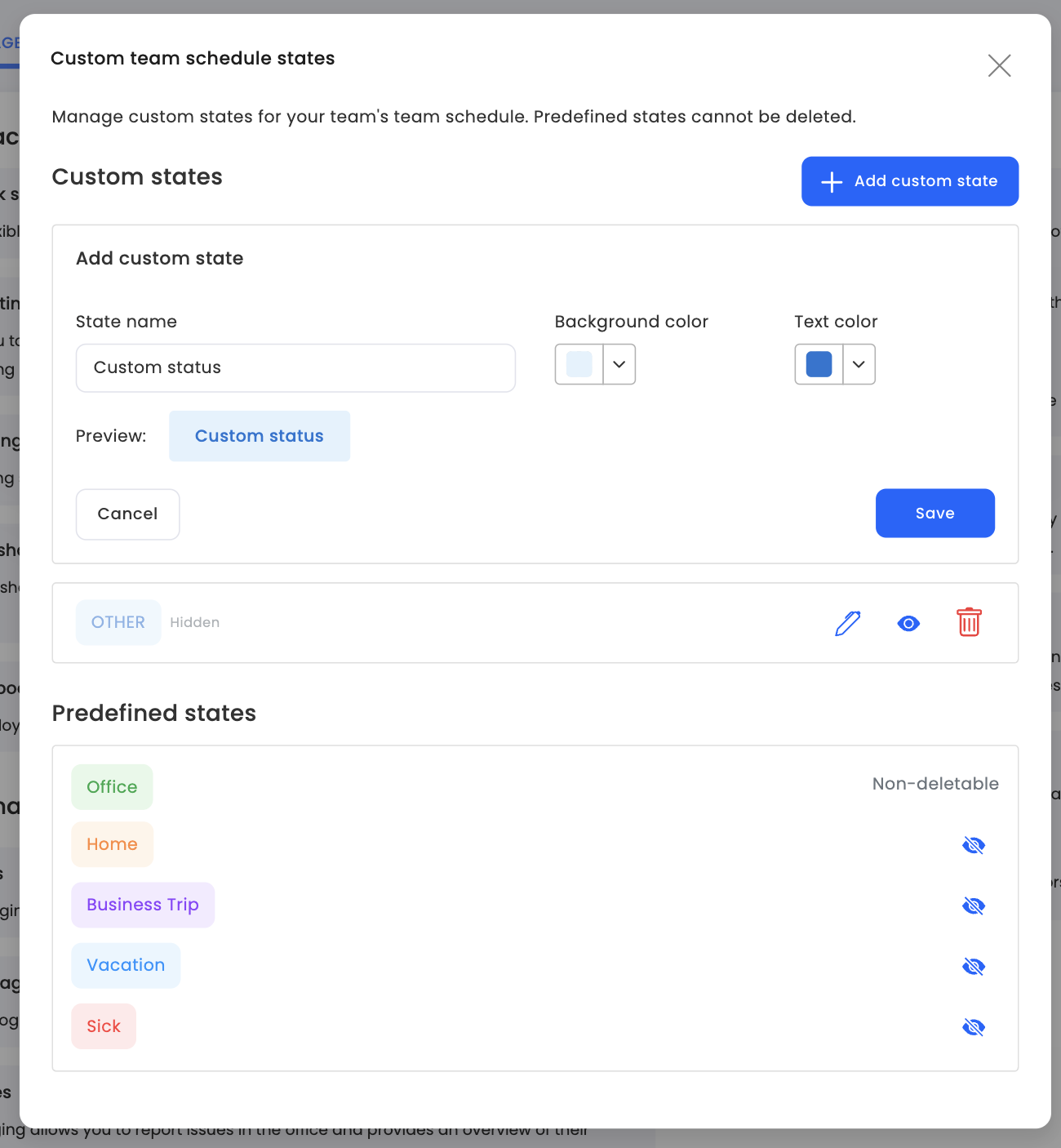
Add new status: Click the option to add a custom status.
Enter the name: Type the name of your new status.
Set colors: Choose a background color and a text color for the status. This determines how the status will appear in the Team Schedule calendar.
Preview: You will see a preview of how the status will look with your chosen name and colors.
Save: Click "Save" and the new status will be available immediately for all employees.
Summary
Customize Team Schedule statuses to match how your organization works. Hide pre-defined statuses like Home, Business trip, Vacation, or Sick if they are not needed, and create custom statuses with your own names and colors. Use the "Other" status when employees need to add a specific note. Manage all statuses in Settings > General > Team Schedule.