
By default, all employees can see the full Team Schedule with every colleague in the organization. However, if your company uses groups to organize users by department or team (such as Sales, Marketing, or Operations), you can restrict the Team Schedule so that employees only see members of their own group.
When to use this feature
This setting is useful for larger organizations where employees do not need to see the schedules of colleagues outside their department. It keeps the Team Schedule focused and relevant, showing only the people each employee works with directly.
This feature is only available when groups are configured in your organization. If no groups have been created, this setting will have no effect.
Enabling group restriction
Navigate to settings: Go to the settings menu in Dibsido.
Select General: Open the "General" settings section.
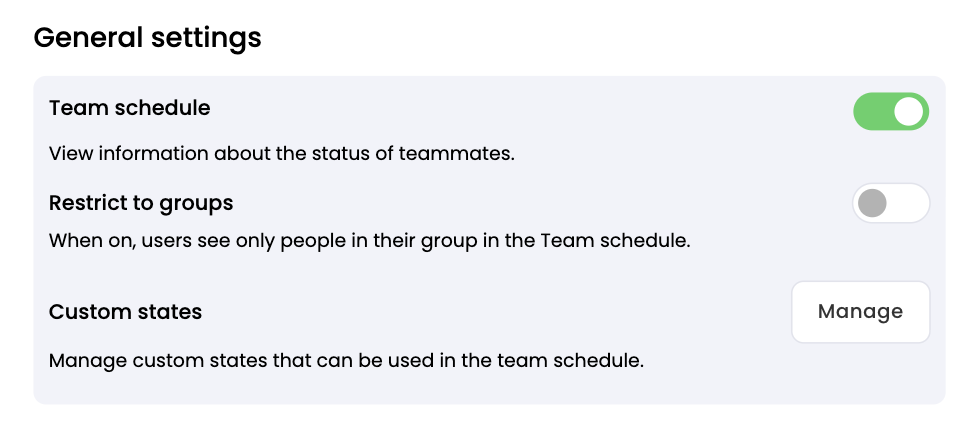
Find Team Schedule: Locate the Team Schedule settings box.
Enable Restrict to Groups: Toggle on the "Restrict to Groups" option.
Save changes: Click "Save" to apply the settings.
How it works
Once enabled, each employee will only see Team Schedule entries for colleagues who belong to the same group. For example, if an employee is part of the Marketing group, they will only see the daily statuses of other Marketing team members.
Administrators and operators are not affected by this restriction and can continue to view the full Team Schedule across all groups.
Summary
Restrict Team Schedule visibility to groups to keep the calendar focused and relevant for each team. Enable the "Restrict to Groups" toggle in Settings > General > Team Schedule. This setting requires groups to be configured in your organization.