
There are two ways to add meeting rooms to Dibsido, depending on whether your company uses an external calendar system. You can import rooms from Google Workspace or Microsoft Outlook for seamless calendar synchronization, or create them manually for a standalone setup.
Option 1: Import from Google or Microsoft Outlook
If your organization already manages meeting rooms through Google Workspace or Microsoft Outlook, you can import them directly into Dibsido. Once connected, events created in the external calendar will automatically appear in Dibsido, keeping both systems in sync.
Microsoft Outlook
Navigate to settings: Go to the settings menu in Dibsido.
Select Meeting Rooms settings: Under settings, choose the "Meeting Rooms" option.
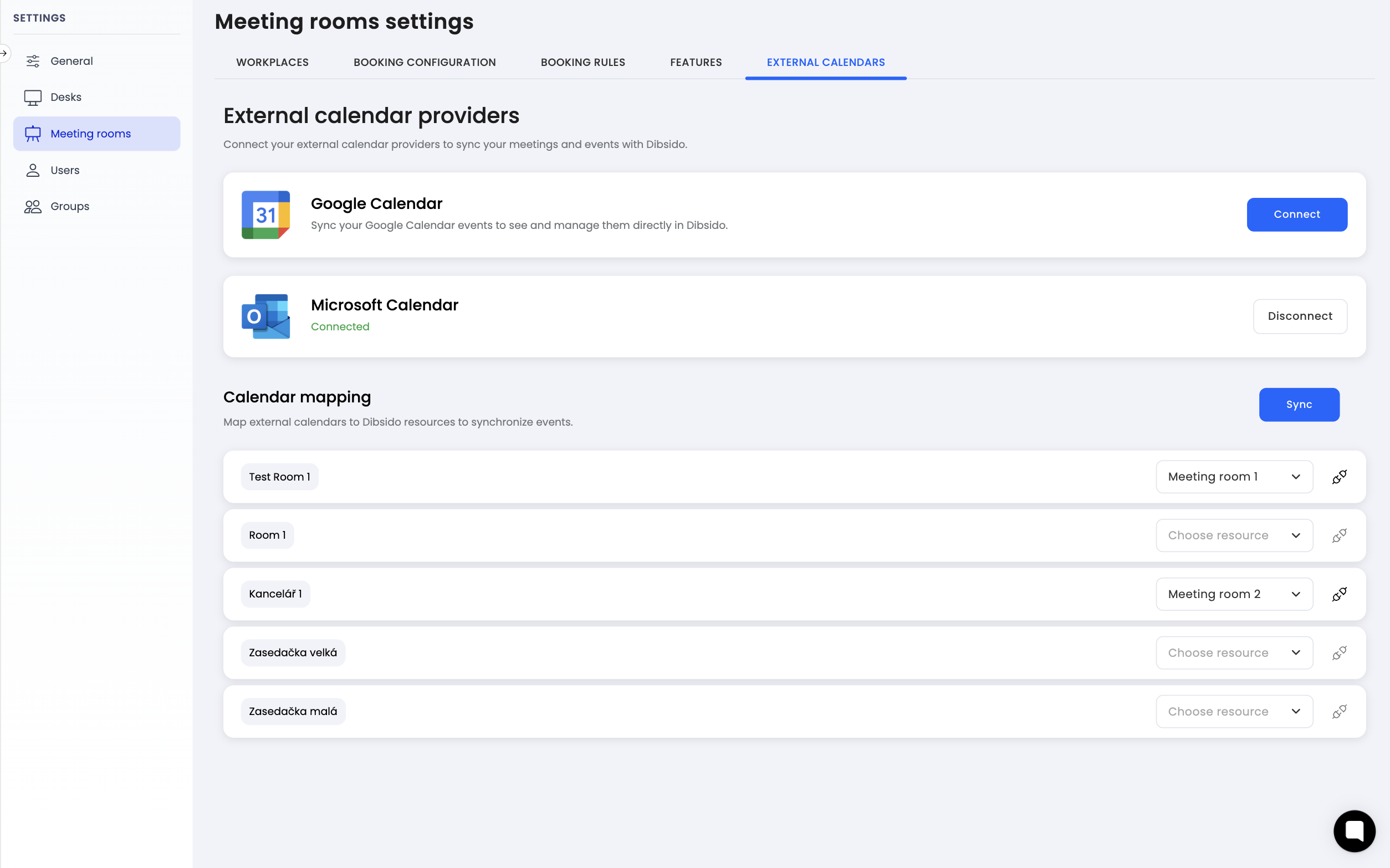
Go to External Calendars tab: Click on the "External Calendars" tab.
Connect Microsoft Outlook: Follow the instructions to connect your Microsoft account. Dibsido will pair your Outlook room resources with meeting rooms in the app.
Google Workspace
Navigate to settings: Go to the settings menu in Dibsido.
Select Meeting Rooms settings: Under settings, choose the "Meeting Rooms" option.
Go to External Calendars tab: Click on the "External Calendars" tab.
Connect Google Workspace: Follow the instructions to connect your Google account. Dibsido works with a butler account to handle the synchronization between Google Calendar and your meeting rooms.
Once connected, any events created in the external calendar will automatically show up in Dibsido.
Option 2: Create rooms manually
If you do not use an external calendar or prefer to manage rooms independently, you can create meeting rooms manually in Dibsido.
Navigate to settings: Go to the settings menu in Dibsido.
Select Meeting Rooms settings: Under settings, choose the "Meeting Rooms" option.
Go to Workplaces tab: Click on the "Workplaces" tab.
Add a room from Map or from workplaces: Click the "Add" button to create a new meeting room.
Enter room details: Provide the name of the room and any additional details.
Save: Click "Save" to create the room.
This approach works without any external integration and gives you full control over your room setup.
Which option should you choose?
Use external calendar import if your company already manages meeting rooms through Google Workspace or Microsoft Outlook and you want reservations to stay in sync across both systems.
Use manual setup if you do not use an external calendar provider, or if you want to manage meeting room bookings exclusively within Dibsido.
Both options can be combined. You can import rooms from an external calendar and also create additional rooms manually.
Summary
Add meeting rooms to Dibsido by importing them from Google Workspace or Microsoft Outlook for automatic calendar synchronization, or create them manually for a standalone setup. Configure your rooms in the Meeting Rooms settings under the External Calendars or Workplaces tab.