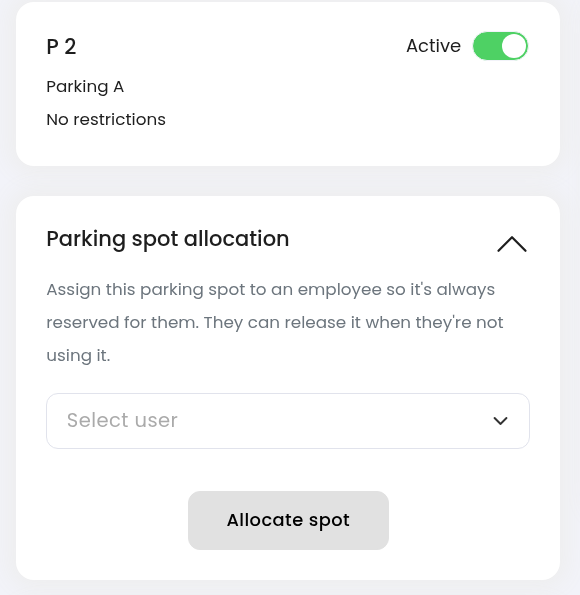
Parking spots don't have recurring series. To book the same spot regularly, use quick repeat, or ask an admin to assign the spot to you permanently. Recurring series are available for meeting rooms only, see How to create and manage a recurring meeting-room series.
Open the booking sidebar: Click the parking spot on the map or in the list.
Pick the first date and time: Choose the day and the time you need.
Turn on Repeat booking: Switch on the toggle, choose a weekday from Monday to Friday and set the end date.
Book: Click "Book spot".
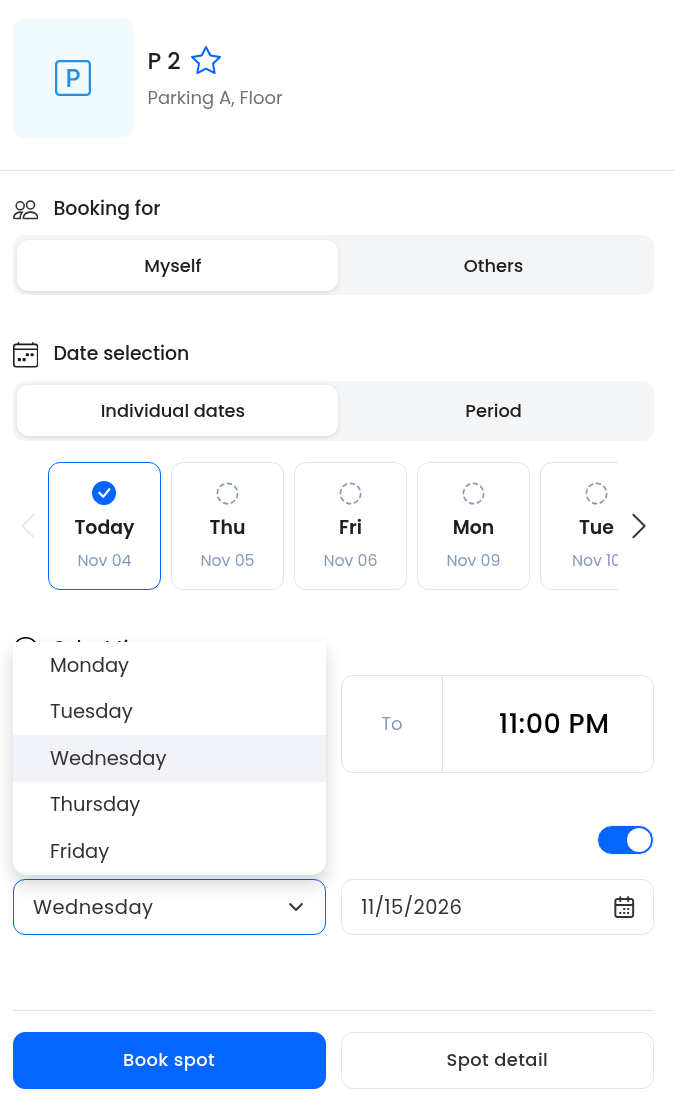

Quick repeat stops at the "Repeating booking limit". Admins set it in Settings → Parking → Booking configuration. By default it matches "Booking timeframe". Admins and operators can book further ahead when booking for others.
Open the booking: On the Dashboard, open the booking you want to cancel and cancel it.
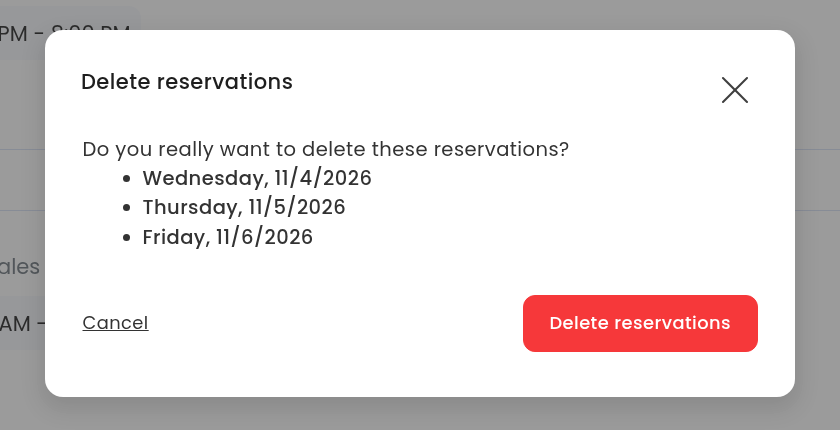
Confirm: Confirm the cancellation in the dialog.
Select bookings: On the Dashboard, select the reservations you want to cancel, or select all.
Cancel in bulk: Cancel the selected reservations in bulk.
Confirm: Confirm the cancellation in the dialog.
Admins can cancel bookings in Reports or directly on the parking spot detail.
Open the spot detail: Click the parking spot on the map or in the list, then click "Spot detail".
Cancel the reservation: Cancel it from the spot's list of planned reservations.
An admin or operator can assign a parking spot to one employee. The spot is then always reserved for them, and they can release it on days they don't use it.
Open the spot detail: Click the parking spot on the map or in the list, then click "Spot detail".
Pick the employee: In "Parking spot allocation", click "Select user" and choose the employee.
Allocate: Click "Allocate spot".