A recurring series books a meeting room on a regular schedule, for example every Wednesday at 2:00 PM. Unlike quick repeat, a series goes past your booking window and renews automatically. Series are available for meeting rooms only.
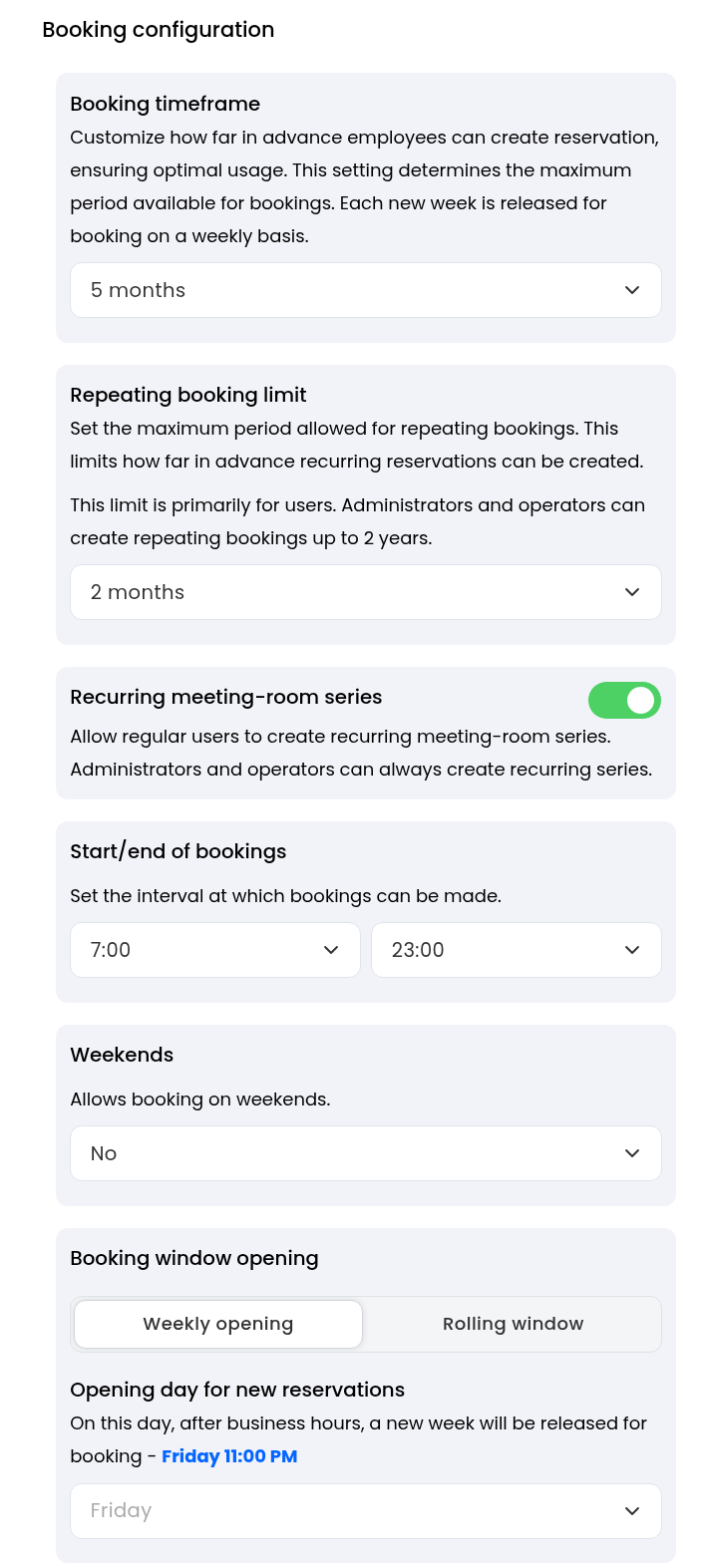
Admins and operators can always create a series. Regular users can do it only after an admin turns it on.
Open the settings: Go to Settings → Meeting rooms → Booking configuration.
Turn on series: Switch on "Recurring meeting-room series".
Check the limit for quick repeat: "Repeating booking limit" sets how far ahead users can create quick repeat bookings. By default it matches "Booking timeframe". It does not apply to recurring series.

Open the booking sidebar: Go to Meeting rooms and click anywhere in the calendar. Then choose the room and the date and time of the first meeting.
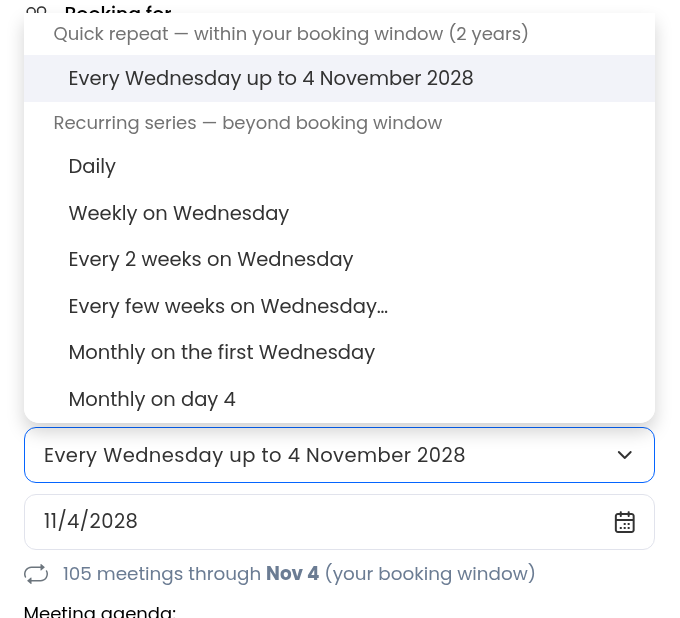
Turn on Repeat booking: Switch on the Repeat booking toggle and open the dropdown under it.
Pick a frequency: Under "Recurring series — beyond booking window", choose Daily, Weekly on <day>, Every 2 weeks on <day>, Every few weeks on <day>..., Monthly on the first <day> or Monthly on day <N>.
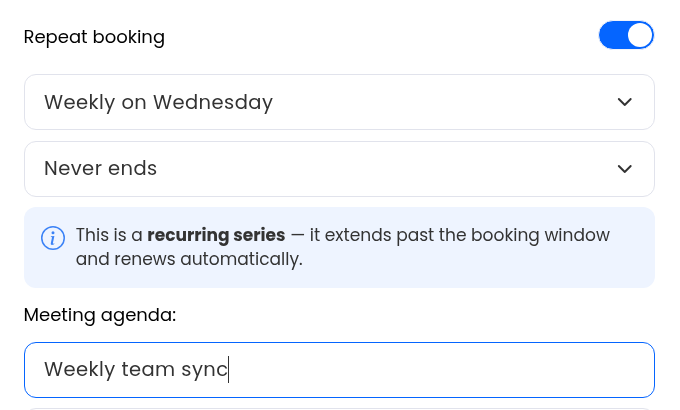
Check the series details: The form shows the chosen frequency and "Never ends". The info box confirms "This is a recurring series — it extends past the booking window and renews automatically."
Book the room: Fill in the meeting details and confirm the booking.
Open the meeting: Open one meeting from the series and choose to edit it.
Choose what to change: In "Edit recurring meeting series", select "This event only", "This and following events" or "All events in the series".
Continue: Click "Continue editing", make your changes and save.
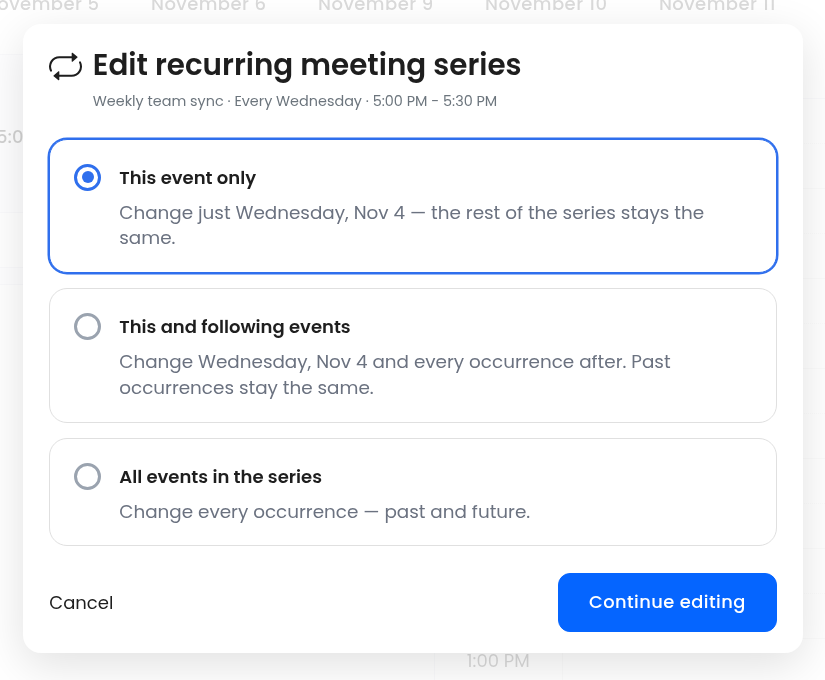
This event only: changes just the meeting you opened.
This and following events: changes this meeting and every later one. Earlier meetings stay as they were.
All events in the series: changes every meeting in the series.
Open the meeting: Open one meeting from the series and choose to cancel it.
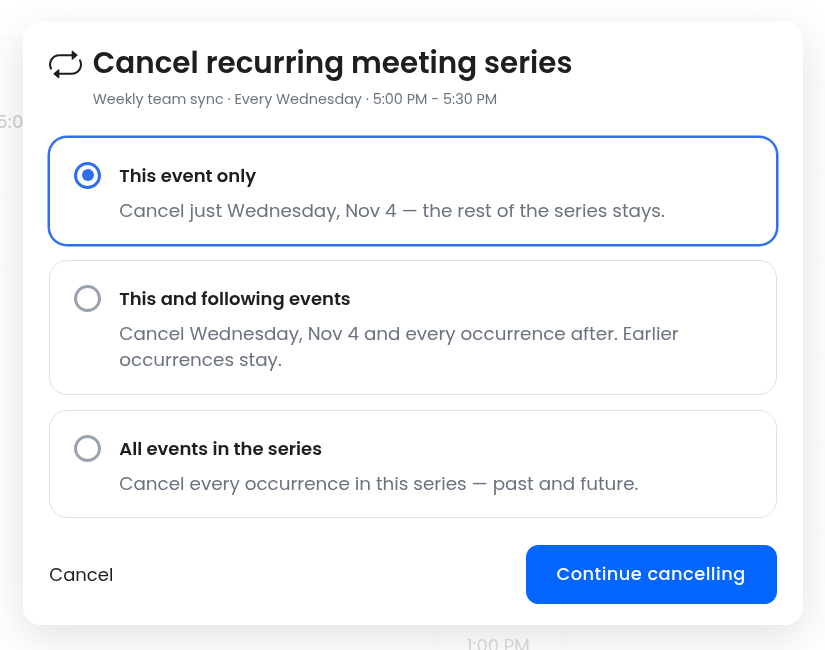
Choose what to cancel: In "Cancel recurring meeting series", select "This event only", "This and following events" or "All events in the series".
Confirm: Click "Continue cancelling".
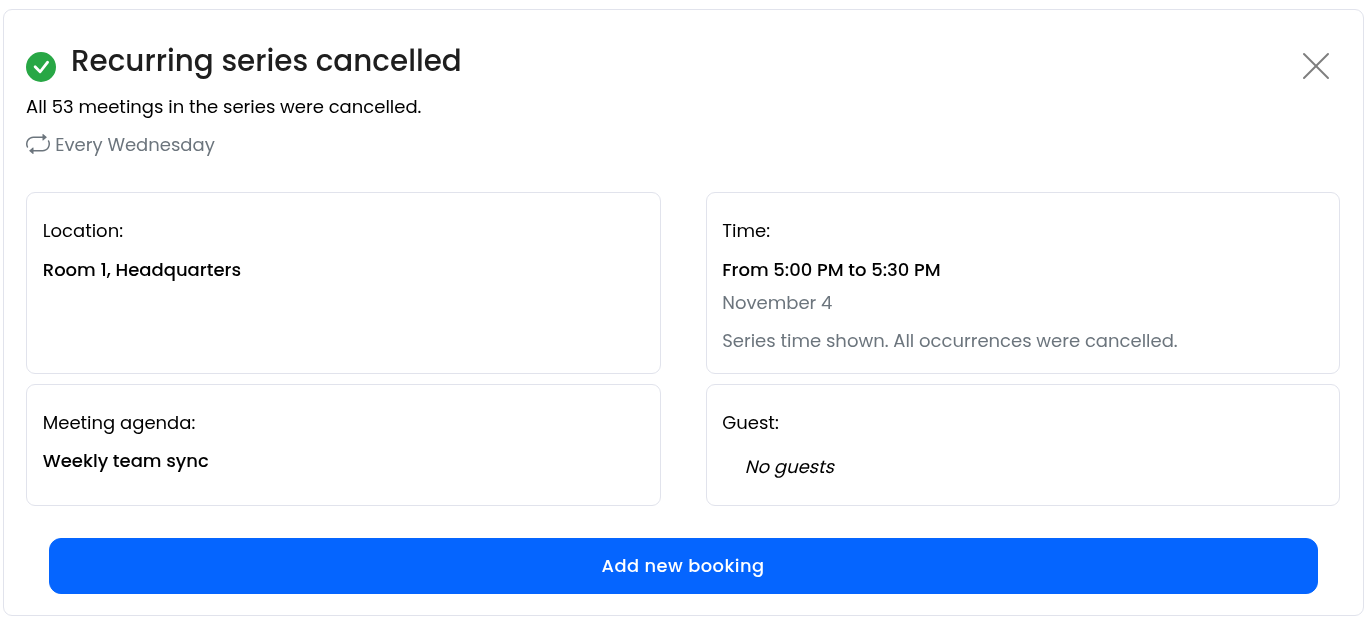
When you cancel the whole series, you see "Recurring series cancelled" with the number of cancelled meetings, for example "All 53 meetings in the series were cancelled." Click "Add new booking" if you want to book again.
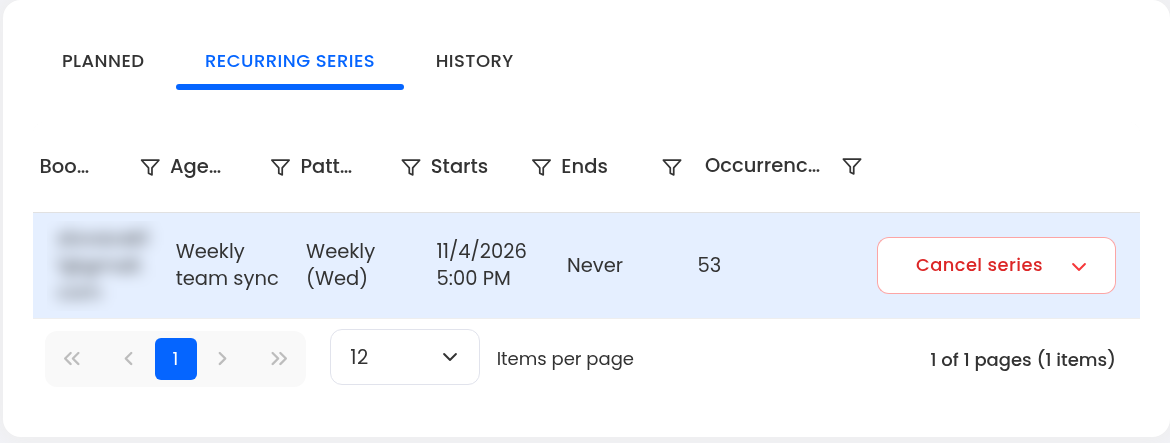
Admins and operators can see every recurring series booked in a room.
Open the room detail: Go to Meeting rooms and open a room.
Open the series tab: Click the "Recurring series" tab, next to "Planned" and "History".
Review the series: Each row shows who booked it, the agenda, the pattern, when it starts and ends, and the number of occurrences.
Cancel a series: Click "Cancel series". The arrow next to it shows more options.
To cancel a single meeting as an admin:
Open the room detail: Go to Meeting rooms and open the room.
Open Planned: Click the "Planned" tab.
Cancel the meeting: Cancel it from the list of planned reservations.
Series are not enabled: You are a regular user and your admin has not turned on "Recurring meeting-room series" in Settings → Meeting rooms → Booking configuration.
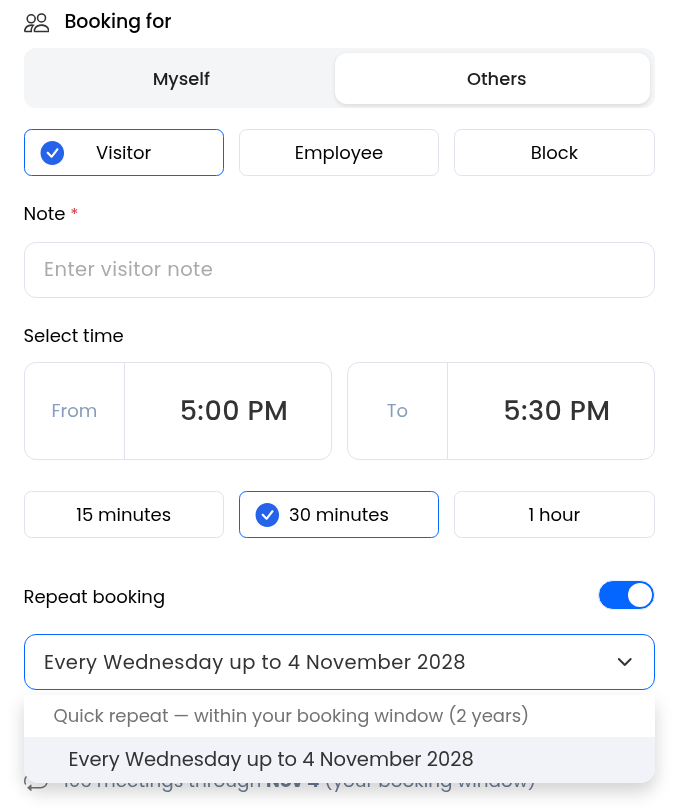
You are booking for someone else: When Booking for is set to Others (Visitor, Employee or Block), only quick repeat is available for now.
You are booking a desk or parking spot: Series exist for meeting rooms only. See Repeating desk bookings and permanent desk assignment or Repeating parking bookings and permanent spot assignment.