Admins and operators can edit or cancel meeting room reservations for anyone, cancel several bookings at once, and see who cancelled a reservation. Regular users manage their own bookings from the calendar or the Dashboard. See How to book a meeting room. For a repeating series, see How to create and manage a recurring meeting-room series.
You can open a booking from the Meeting rooms calendar or from the room detail page.
From the calendar: Go to Meeting rooms and click the booking in the calendar. A sidebar opens with the room, time, agenda, guests, and the buttons Edit reservation and Cancel reservation.
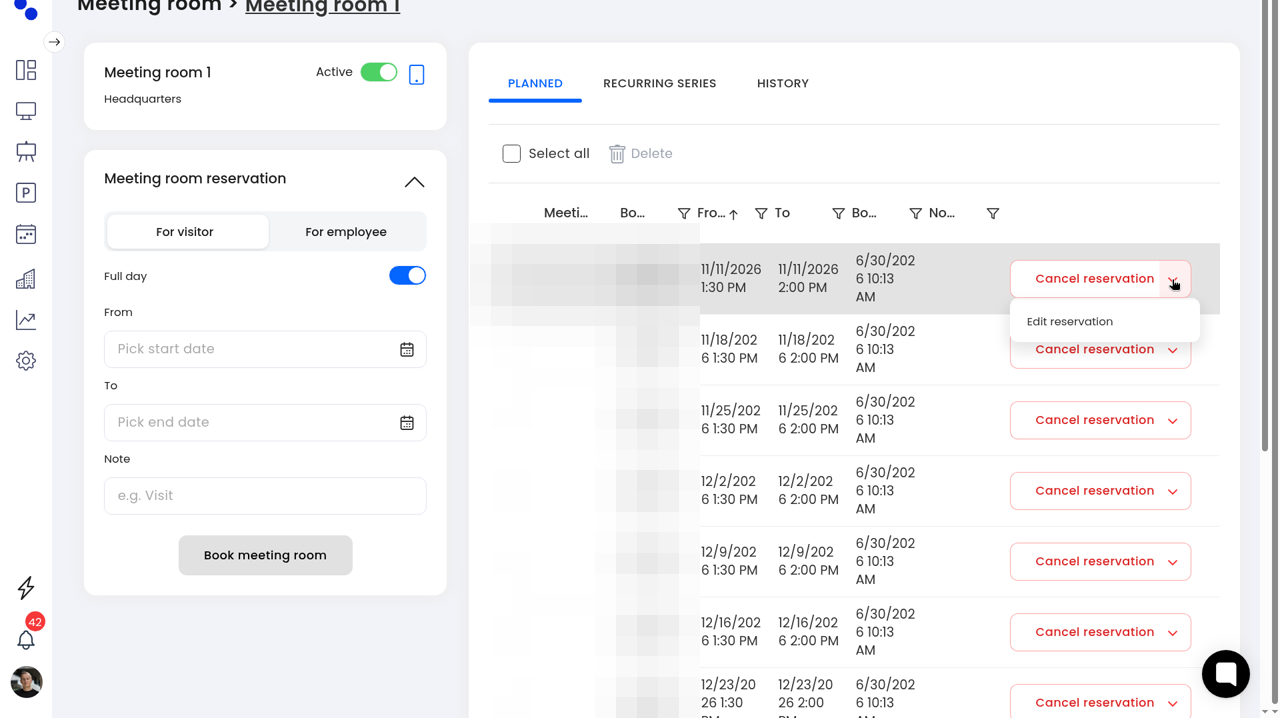
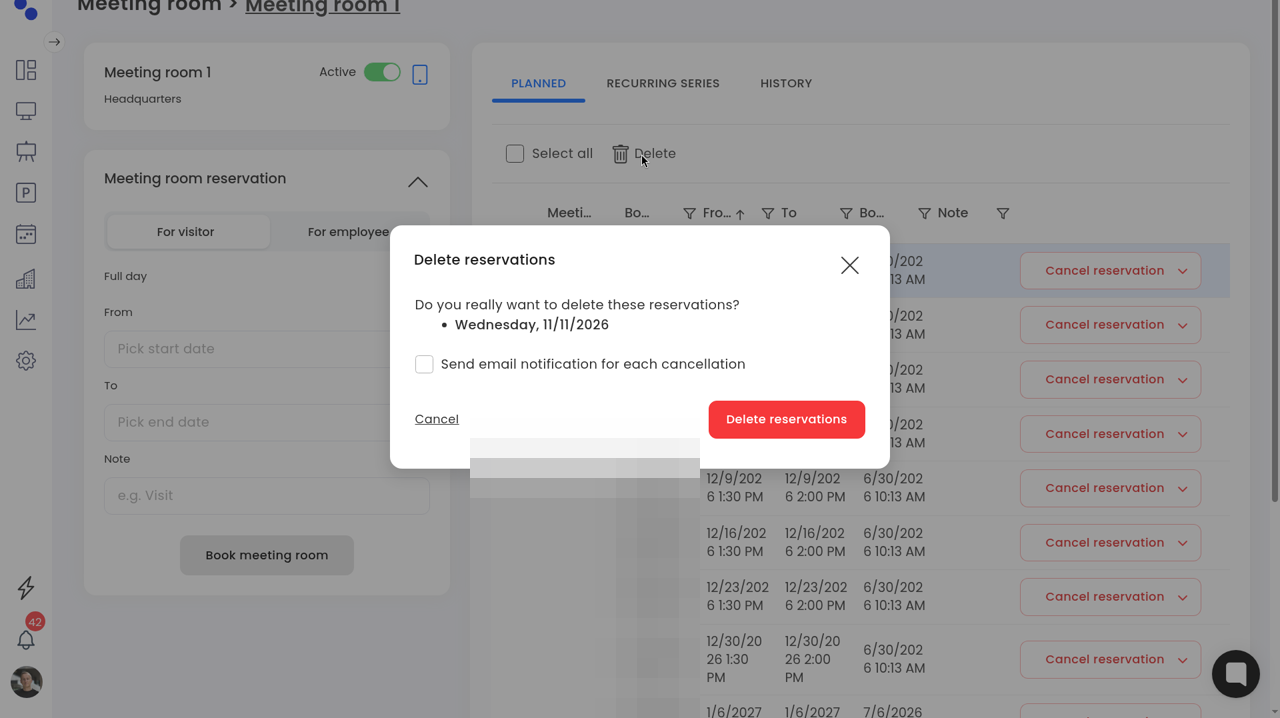
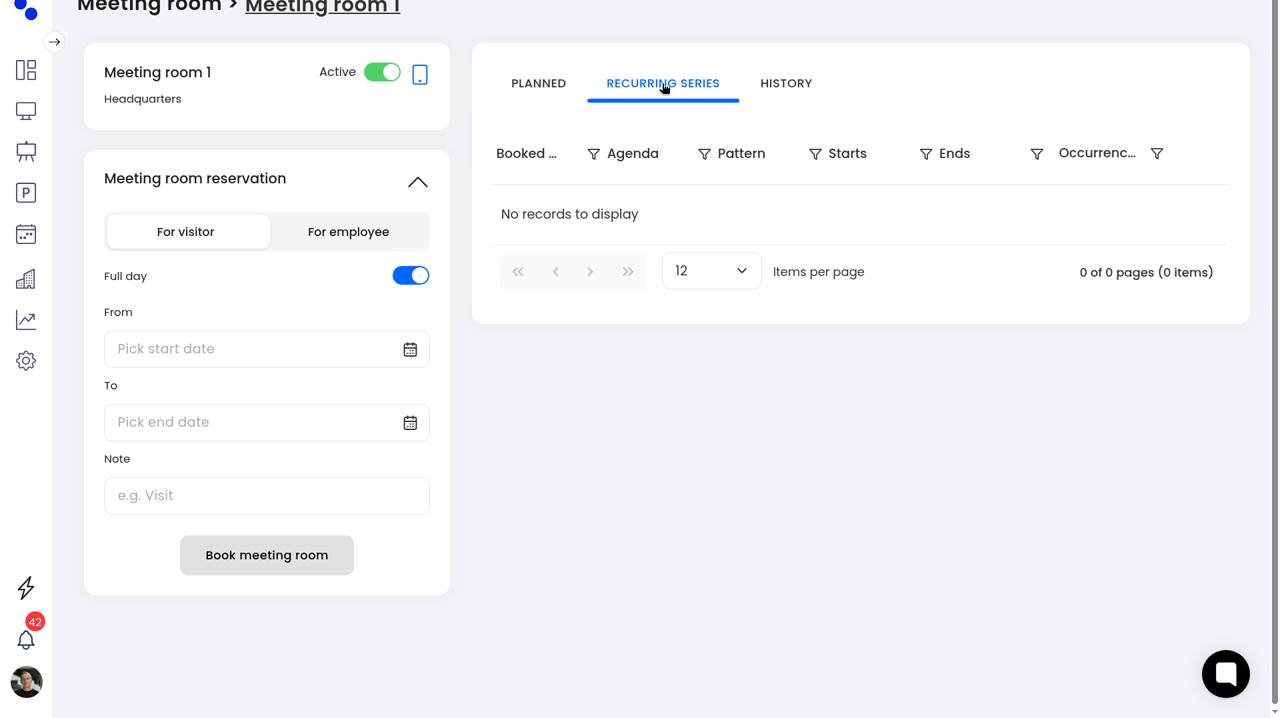
From the room: Open the room (Room detail) and use the PLANNED tab. Columns include Meeting, Booked by, From, To, Booking time, and Note. The HISTORY tab lists past bookings. The RECURRING SERIES tab lists series for this room.
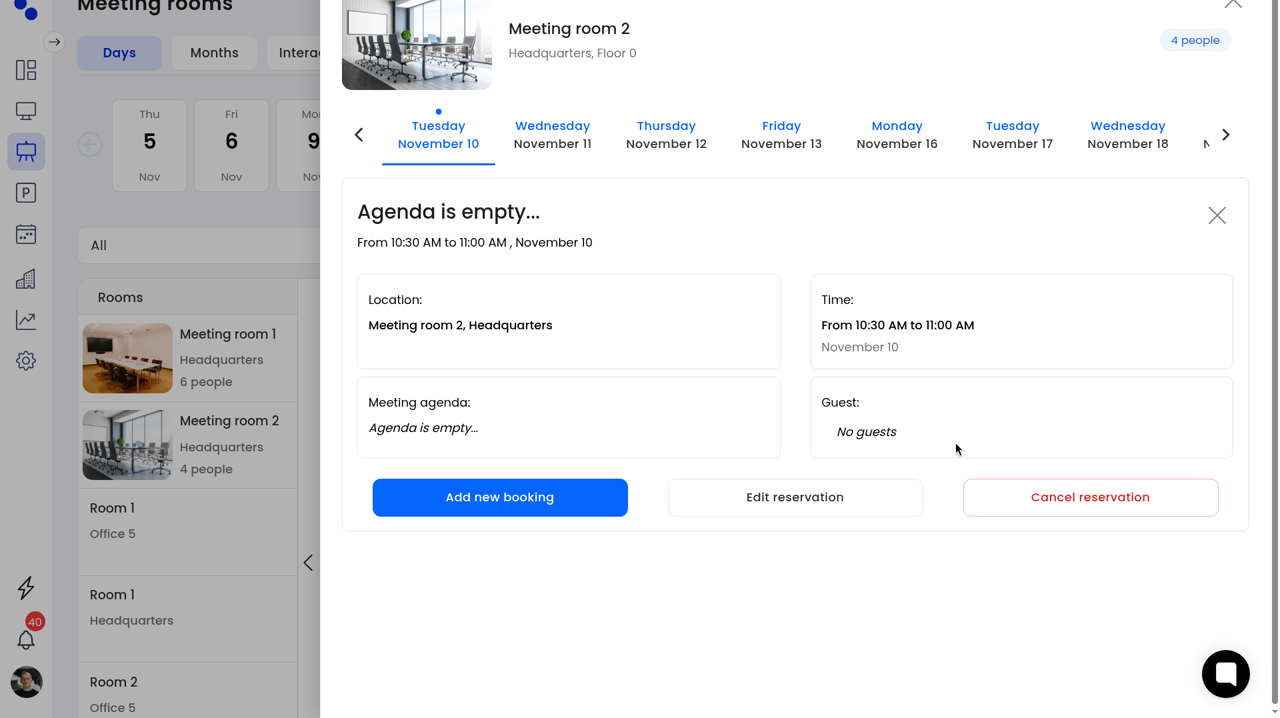
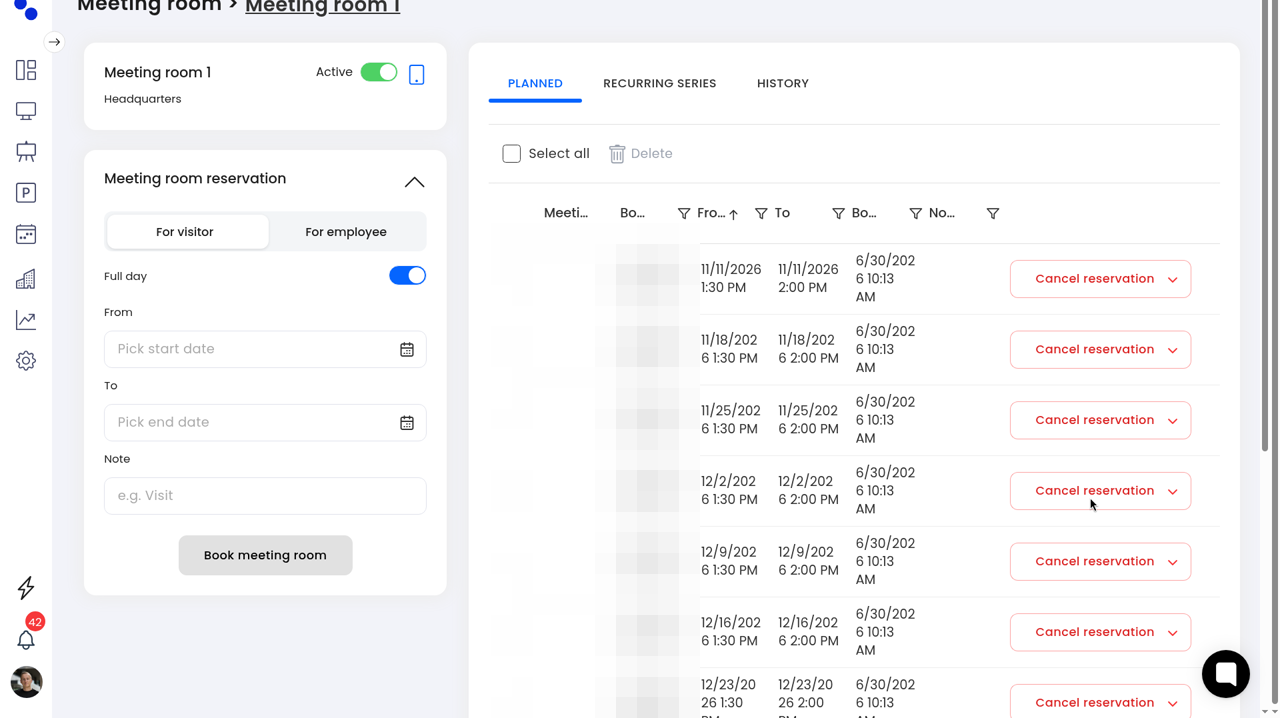
Open the booking: Click it in the calendar and choose Edit reservation. On the room detail Planned list, open the arrow next to Cancel reservation and choose Edit reservation.
Change the details: Edit Select time (From, To, and the 15 minutes, 30 minutes, or 1 hour chips), Meeting agenda, and Invite users (Colleagues or External guests). You can also set services or a meeting link, when those options appear.
Change the room: Under Other details, click Change meeting room, pick a room from Available meeting rooms, then Confirm.
Save: Click Update booking. The card confirms that the reservation has been updated. Use Cancel update if you do not want to save.
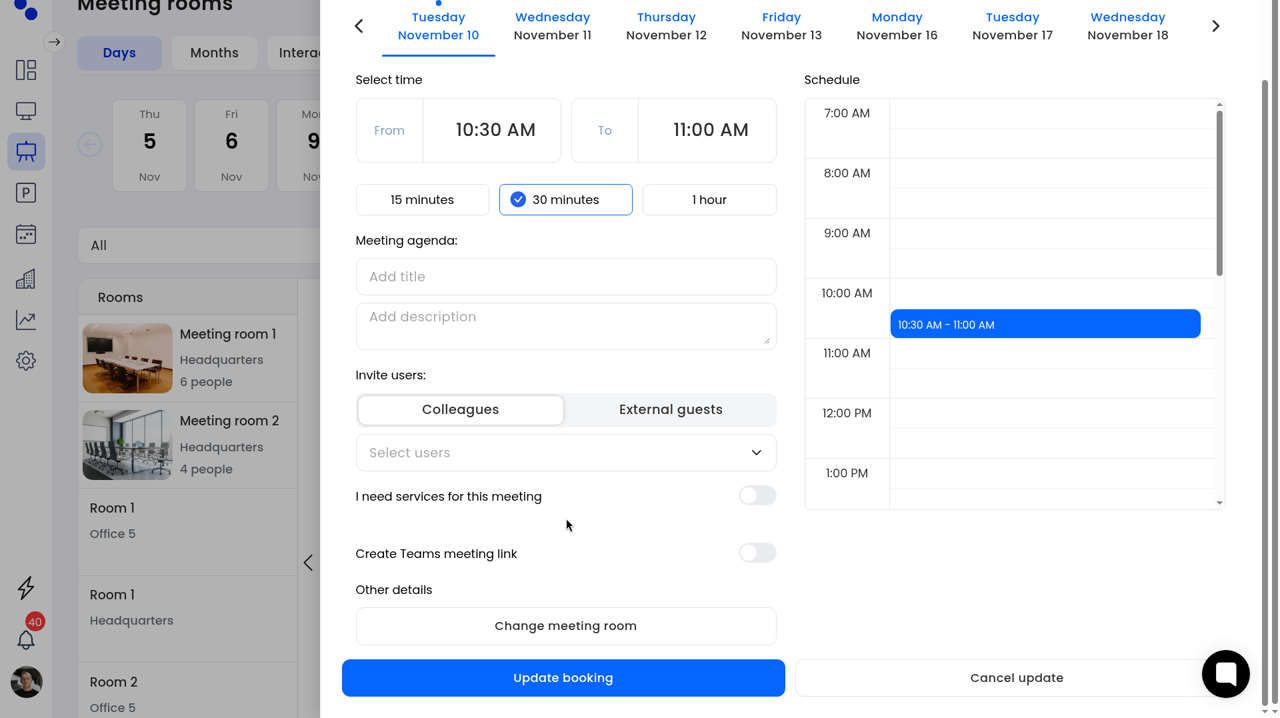
The booking card does not show a Booking for field when you view or edit an existing reservation. That choice appears only when you create a new booking.
From the calendar sidebar, click Cancel reservation. On a Planned row, click Cancel reservation.
This action cancels the booking immediately. There is no confirmation dialog. The calendar card then shows that the reservation has been cancelled.
Use this when you mean to cancel a single booking and are sure you have the right one.
Open Planned: Go to the room detail page and open the PLANNED tab.
Select bookings: Tick the reservations you want to remove, or use Select all.
Delete: Click Delete. A Delete reservations dialog asks: "Do you really want to delete these reservations?" and lists the dates.
Notify people (optional): Tick Send email notification for each cancellation if you want each person to get an email.
Confirm: Click Delete reservations, or Cancel to keep them.
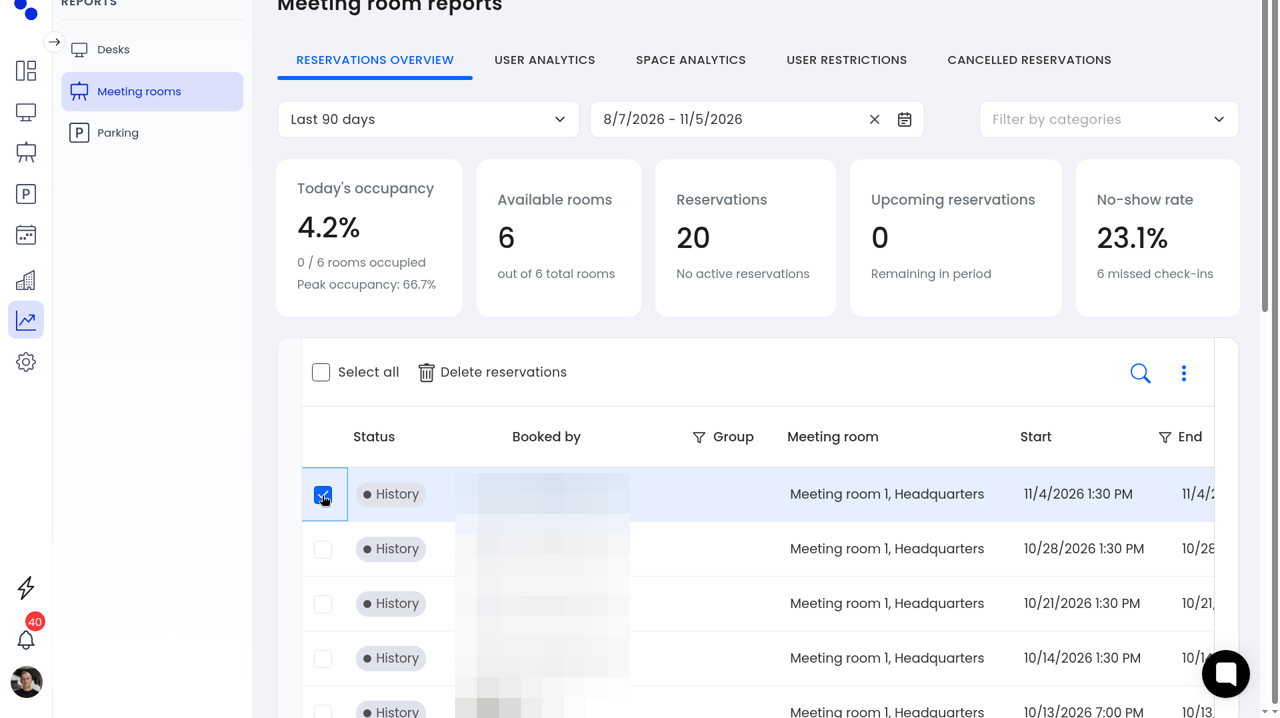
Open reports: In the left icon bar, open Reports and choose Meeting rooms. The page title is Meeting room reports.
Open the list: Stay on RESERVATIONS OVERVIEW. Pick a period (for example Last 90 days) if the default Today view has no rows.
Select bookings: Tick one or more rows, or use Select all. Then click Delete reservations.
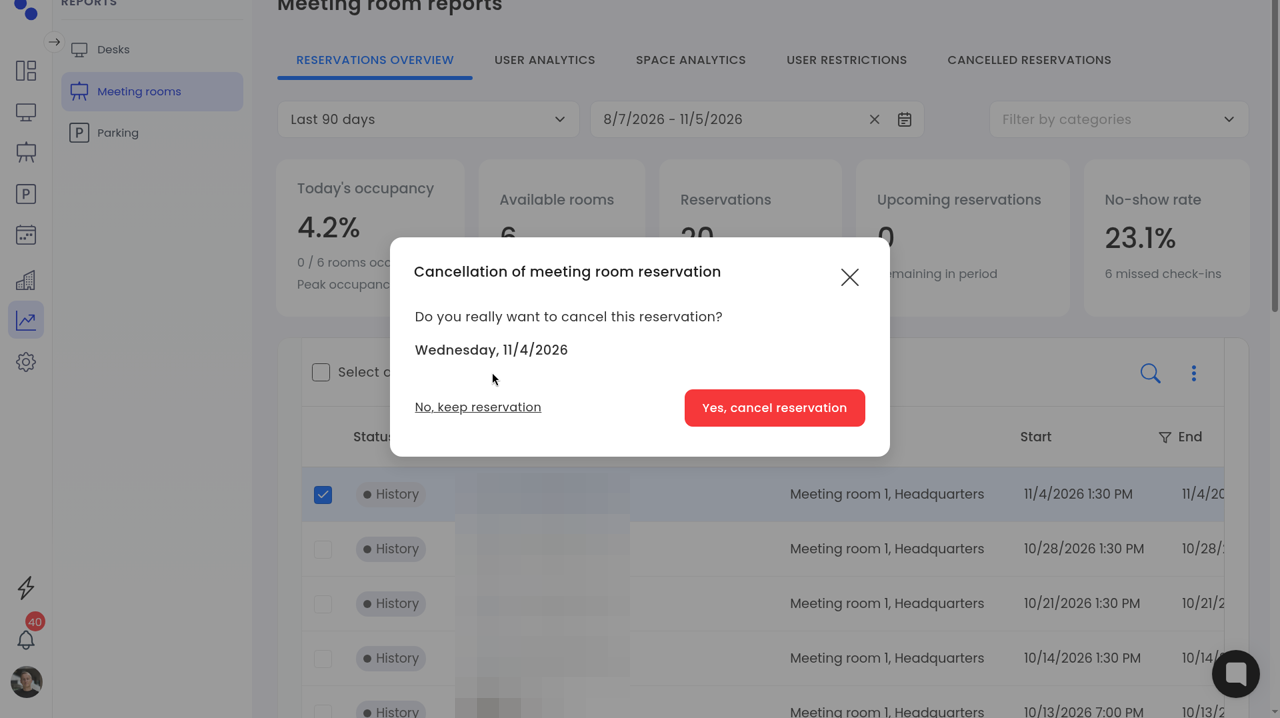
Confirm: The dialog title is Cancellation of meeting room reservation. It asks "Do you really want to cancel this reservation?" and shows the date. Choose Yes, cancel reservation, or No, keep reservation to stop.
Cancelled bookings are not listed with a Cancelled by column on the room History tab or on the reservation card.
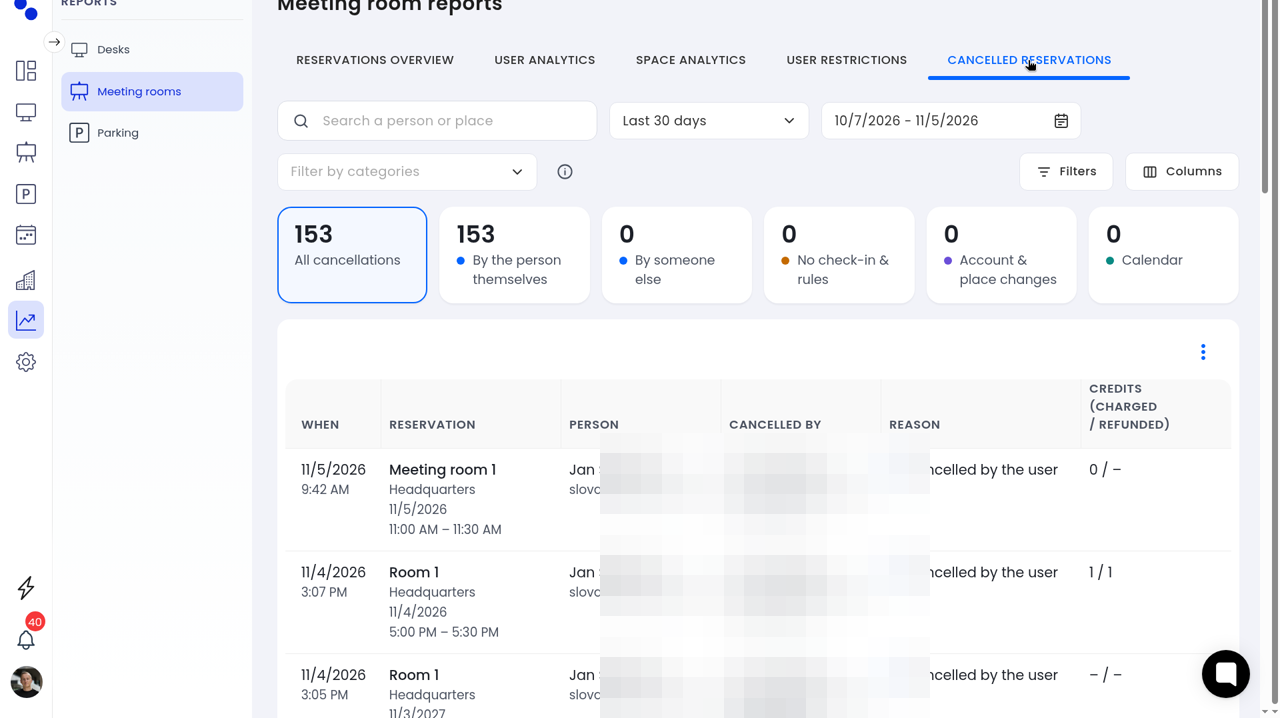
Open the log: Go to Reports → Meeting rooms → CANCELLED RESERVATIONS.
Read the row: Columns are WHEN, RESERVATION, PERSON, CANCELLED BY, REASON, and CREDITS (CHARGED / REFUNDED). Cancelled by can include the person and whether it was done via the web app. Reason examples include Cancelled by the user.
Filter: Summary cards include All cancellations, By the person themselves, By someone else, No check-in & rules, Account & place changes, and Calendar. You can also search a person or place, pick a timeframe, and use Filters.
Admins and operators can review series on the room detail page, on the RECURRING SERIES tab (Booked by, Agenda, Pattern, Starts, Ends, Occurrences). To create, edit, or cancel a series, follow How to create and manage a recurring meeting-room series.
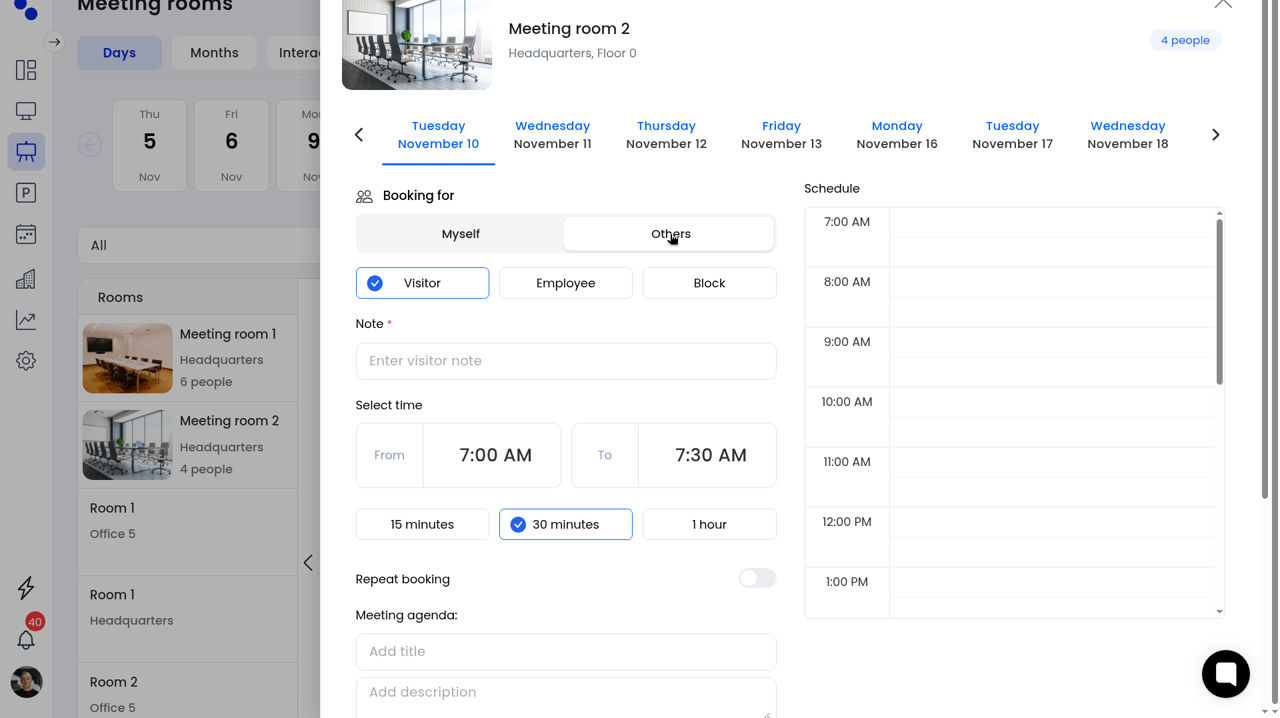
When you create a booking from an empty calendar slot, Booking for offers Myself and Others. Others has three options: Visitor, Employee, and Block. Employee shows an Employee dropdown so you can pick the colleague. Visitor requires a note.
The room detail page also has For visitor and For employee in the Meeting room reservation panel, with From and To dates, an optional Note, and Book meeting room.
Open a booking from the Meeting rooms calendar or the room detail page. Edit with Edit reservation and save with Update booking. Cancel one booking with Cancel reservation (this happens at once, without a confirmation). Cancel several from the room's Planned tab with Delete, or from Reports → Meeting rooms → Reservations overview with Delete reservations. To see who cancelled, open Reports → Meeting rooms → Cancelled reservations.
