Book a meeting room from the Meeting rooms calendar, invite colleagues or external guests, then edit or cancel the reservation when plans change. For a regular schedule beyond your booking window, see How to create and manage a recurring meeting-room series.
Open Meeting rooms: Go to Meeting rooms.
Pick a view: Use the Days, Months or Interactive map tabs. Days shows a timeline of rooms and half-hour slots.
Choose a day: Use the date strip at the top.
Find a free slot: Look for an empty slot on a room row. You can filter by room with "All" or by attributes with "Select attributes".
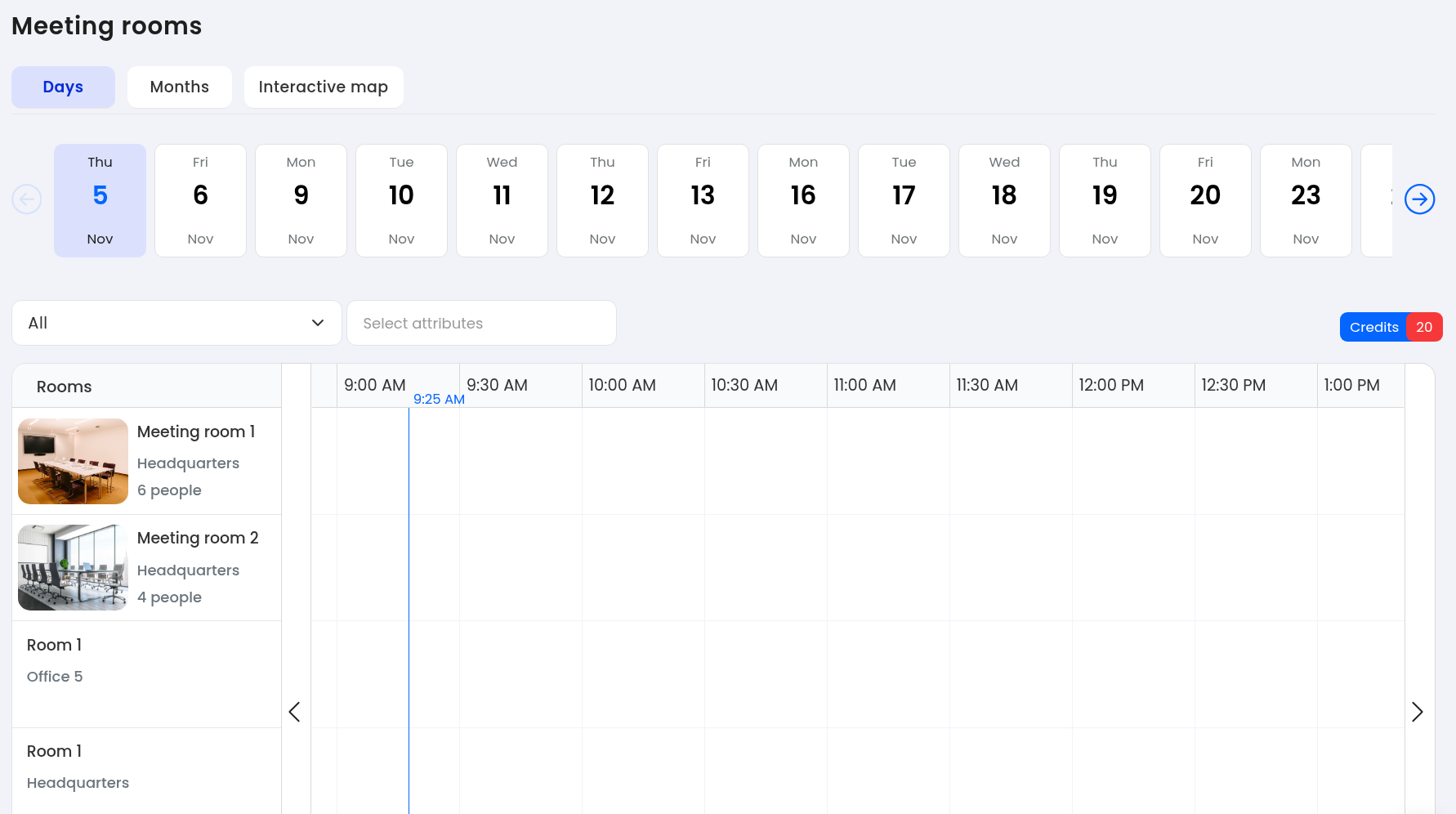

Click a free slot: Click an empty slot on a room row in the calendar, or click anywhere in the calendar and then choose the room and time.
Check the room: The sidebar shows the room name, location, and attribute chips such as capacity, Projector or TV. A date strip lets you change the day. A Schedule mini-timeline on the side shows other bookings in that room.
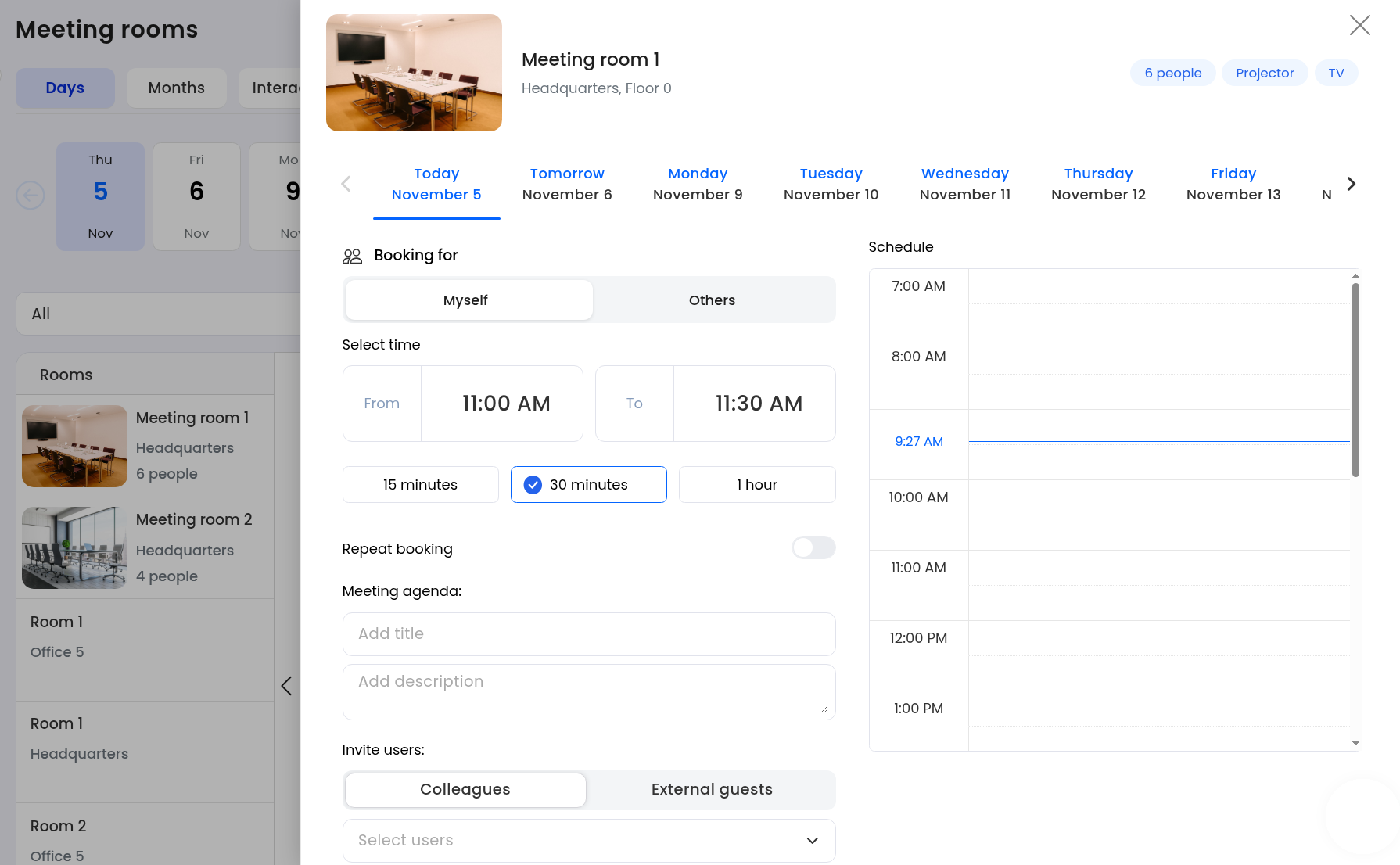
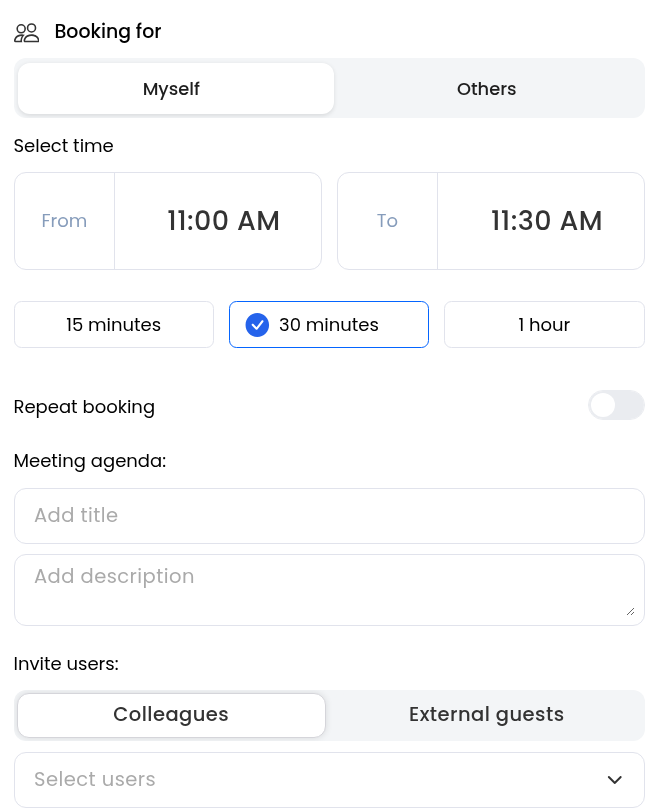
Choose who the booking is for: Keep "Myself", or switch to "Others" and pick Visitor, Employee or Block. Visitor and Block need a Note.
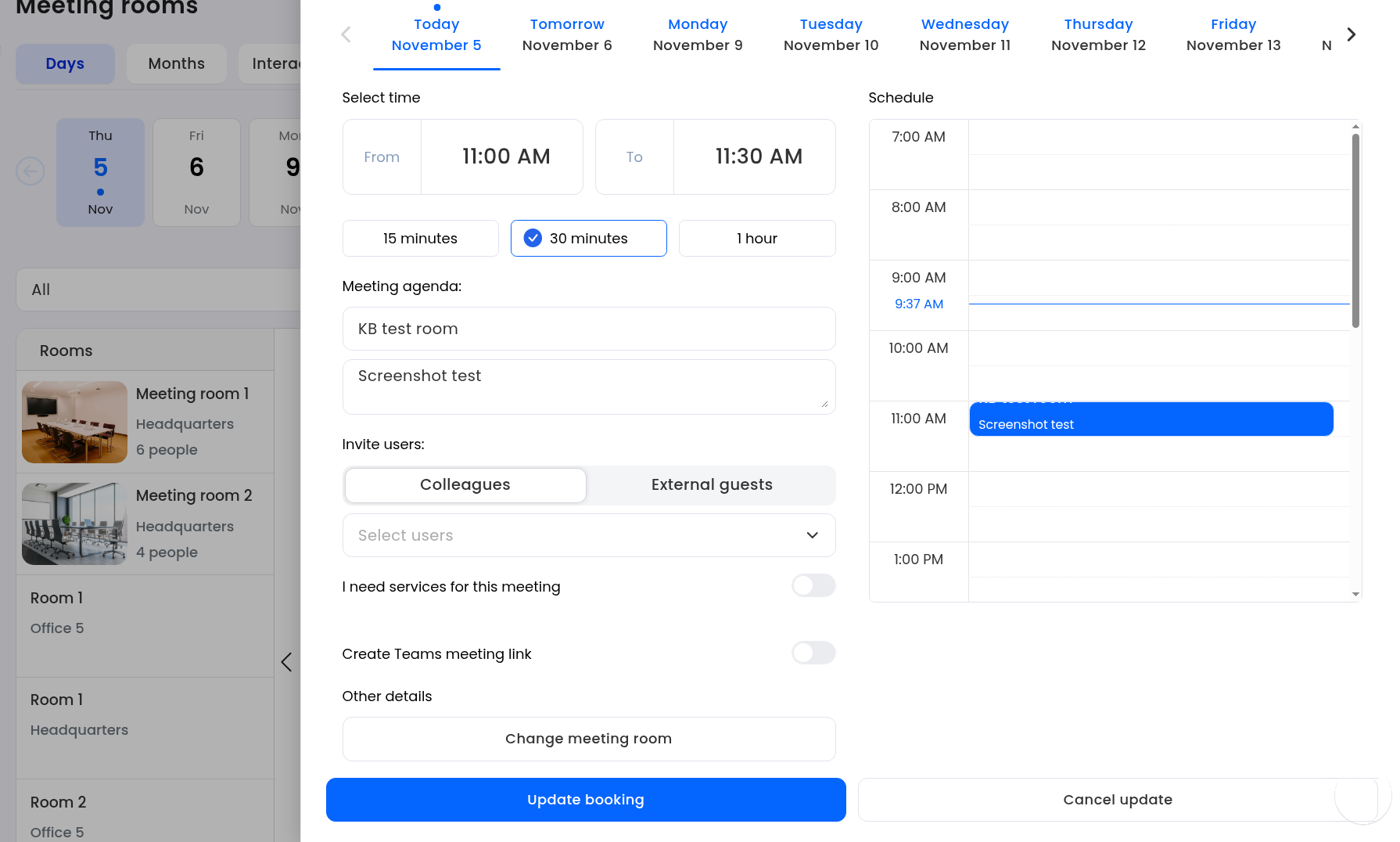
Set the time: Choose From and To, or use a duration chip: 15 minutes, 30 minutes or 1 hour.
Add the agenda (optional): Under Meeting agenda, fill in "Add title" and "Add description".
Invite people (optional): Under Invite users, choose Colleagues and "Select users", or External guests and enter an email (placeholder "E.g. [email protected]"). After you select a colleague, you can turn on "Allow guests to edit reservation" so they can edit the booking with you. See Allow invited guests to edit a meeting room reservation.
Optional switches: Turn on "I need services for this meeting" if you need them. The available services depend on what your company configured. If the room is connected to a calendar, you may also see "Create Teams meeting link" (Outlook/Teams) or "Create Google Meet link" (Google), depending on that connection. If the room is not connected to a calendar, that link option does not appear.
Repeat (optional): Switch on Repeat booking if you need a repeating reservation. For a recurring series beyond your booking window, see How to create and manage a recurring meeting-room series.
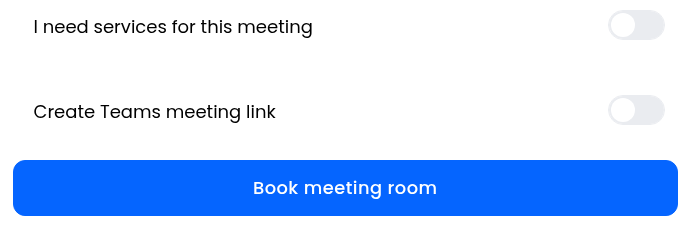
Book: Click "Book meeting room".
Review the summary: The dialog "Meeting room reservation has been created" shows Dates, Time, Meeting room, Meeting agenda and Guest. Click Close.
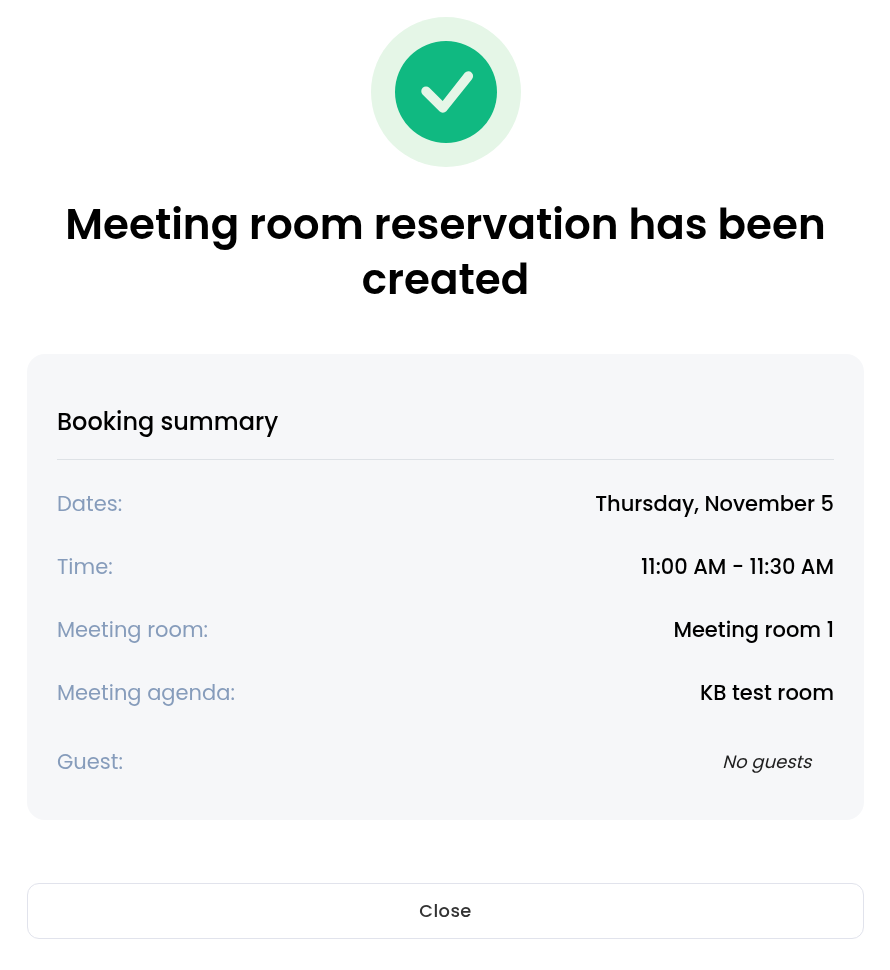
The booking appears as a block on the Meeting rooms timeline. You can also open it from the Dashboard.

Open the booking: Click the booking block on the calendar, or open it from the Dashboard.
Edit: Click "Edit reservation".
Change what you need: Update the time, agenda or invites. Click "Change meeting room" if you need a different room.
Save: Click "Update booking", or "Cancel update" to leave without saving.
Open the booking: Click the booking block on the calendar, or open it from the Dashboard.
Cancel: Click "Cancel reservation".
Confirm: In "Cancellation of meeting room reservation", choose "Yes, cancel reservation", or "No, keep reservation" to leave it.
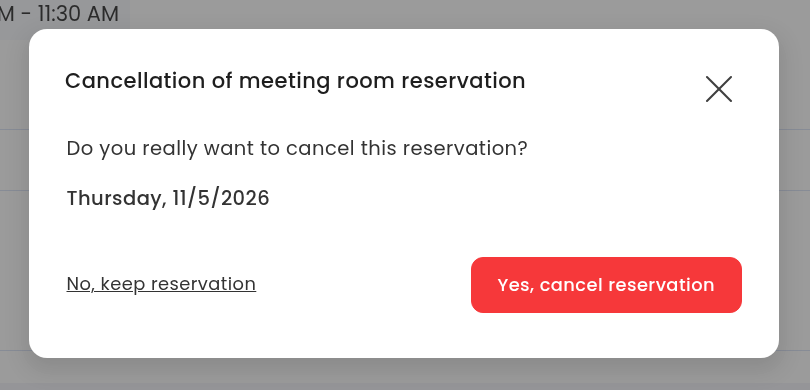
You then see "Meeting room reservation has been canceled."
Admins can also cancel a booking from the room detail: Meeting rooms → open the room → Planned tab, then cancel it from the list of planned reservations.
