Dibsido offers two ways to repeat a booking. Quick repeat works for desks, parking and meeting rooms. A recurring series works for meeting rooms only. This article explains the difference and links to the detailed guides.
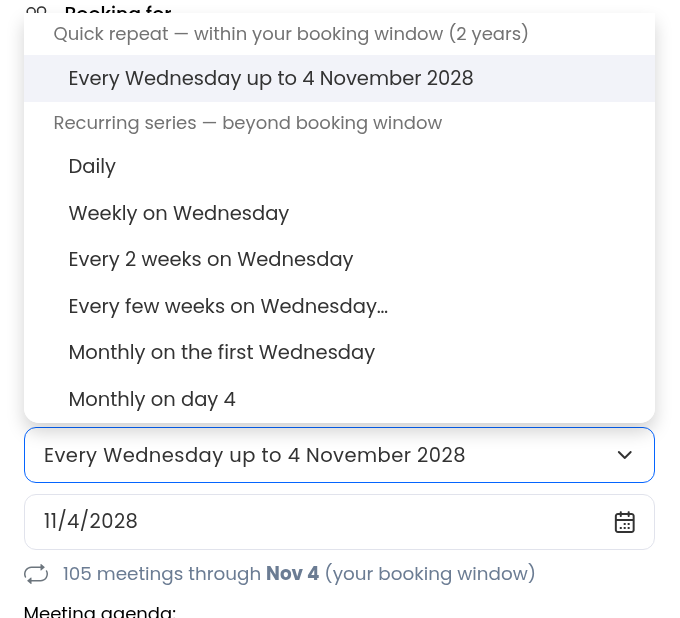
First open the booking sidebar. For desks and parking, click the place on the map or in the list. For meeting rooms, click anywhere in the calendar. When you switch on Repeat booking, the dropdown shows two groups:
Quick repeat — within your booking window: creates separate, independent bookings up to the "Repeating booking limit". Available for desks, parking and meeting rooms.
Recurring series — beyond booking window: creates one linked series that renews automatically. You can edit or cancel one meeting, the following ones, or the whole series. Meeting rooms only.

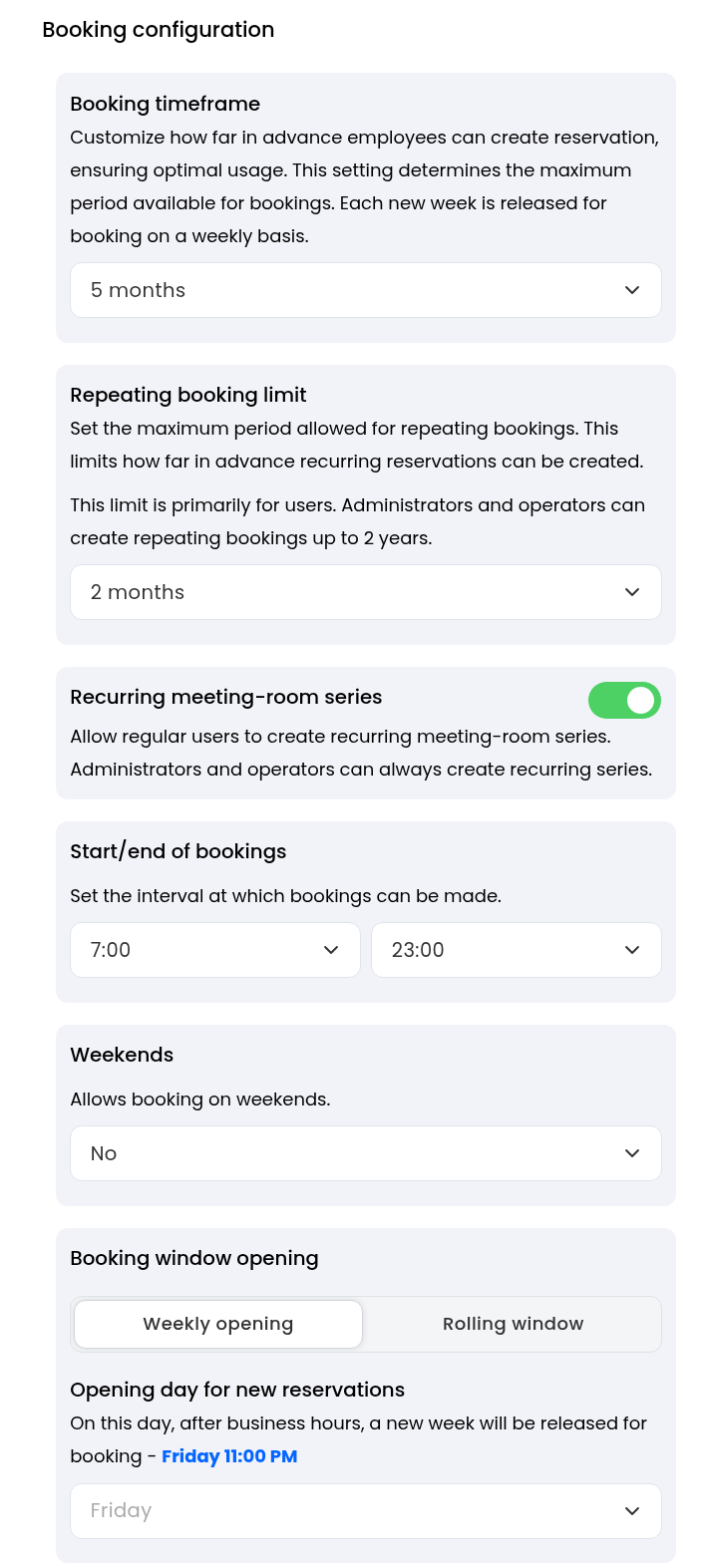
Open the settings: Go to Settings → Desks, Parking or Meeting rooms → Booking configuration.
Set the limit: "Repeating booking limit" sets how far ahead users can quick repeat. By default it matches "Booking timeframe". It applies to quick repeat only, not to recurring series. Admins and operators can go further: up to 2 years for meeting rooms, and up to 1 year for desks when booking for others.
Enable series: In Meeting rooms, switch on "Recurring meeting-room series" to let regular users create series. Admins and operators can always create them.
Desks: Repeating desk bookings and permanent desk assignment
Parking: Repeating parking bookings and permanent spot assignment
Meeting rooms: How to create and manage a recurring meeting-room series
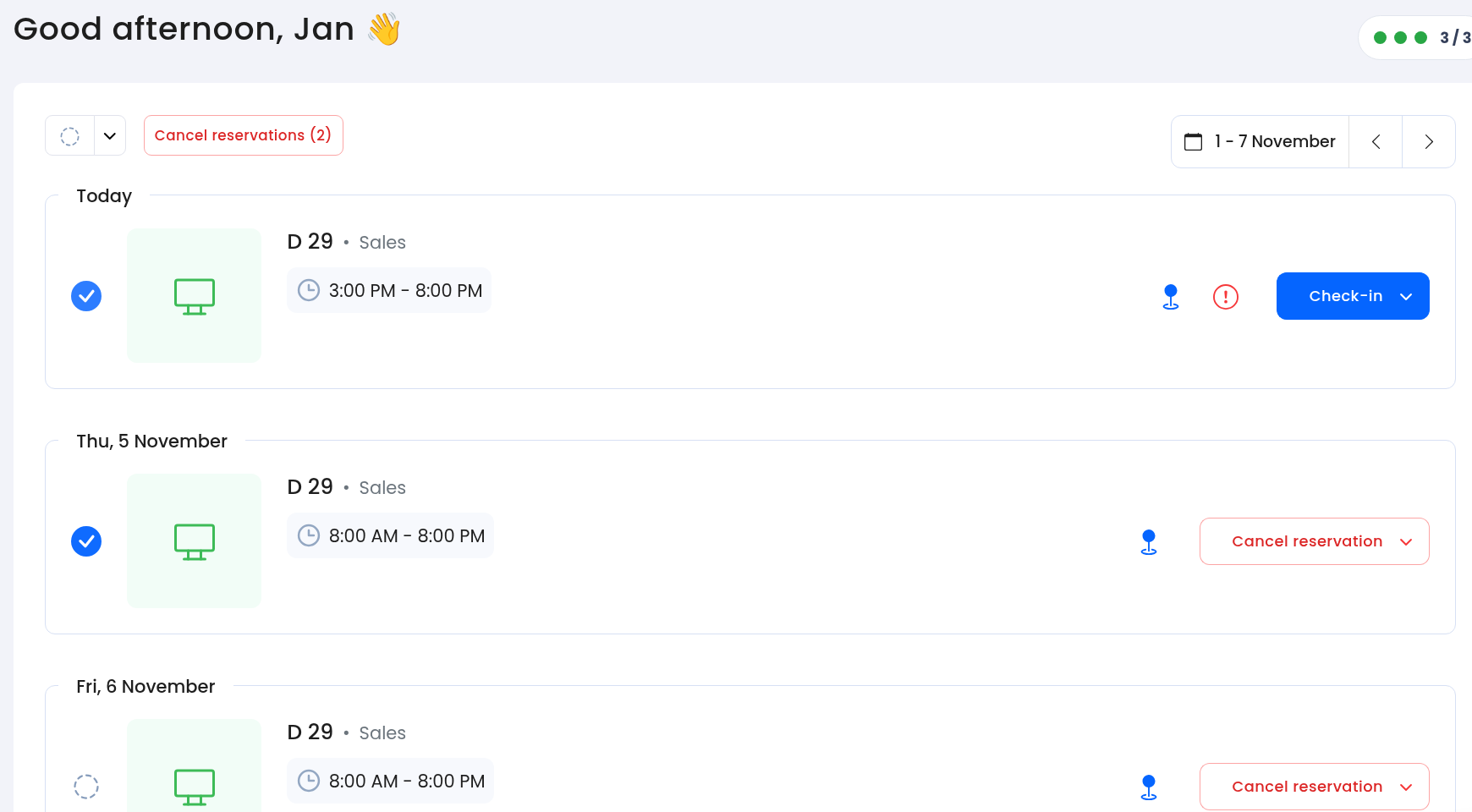
One booking: On the Dashboard, open the booking and cancel it.
Several bookings: On the Dashboard, select the reservations you want to cancel and cancel them in bulk.
As an admin, in Reports: For desks, go to Reports → Desks → Reservations overview.
As an admin, on the detail: Open the desk detail, parking spot detail or meeting room detail and cancel the reservation from its list of planned reservations.
A meeting-room series: Open one meeting from the series, cancel it and choose "This event only", "This and following events" or "All events in the series".
Quick repeat stops at the "Repeating booking limit" set by your admin. If you need a meeting room further ahead, use a recurring series. For desks and parking, ask your admin about a permanent assignment.
