This article lists meeting room features that customers often ask about and that Dibsido does not offer yet. Where there is a close alternative, it is included below.
Related guides: How to book a meeting room, Managing monthly booking limits (credits) for meeting rooms, Managing meeting room bookings as admin.
A meeting room reservation cannot require approval from a host or an admin. When someone books a room (and the room is free and they have access), the booking is confirmed at once.
A regular user books one meeting room at a time. There is no way to add several rooms to a single user reservation.
An admin or operator can book every room in a workplace at once:
Open workplaces: Go to Settings → Meeting rooms → FLOORPLANS and click Edit workplaces on the floorplan.
Open the menu: Next to the workplace name, click the ⋮ menu.
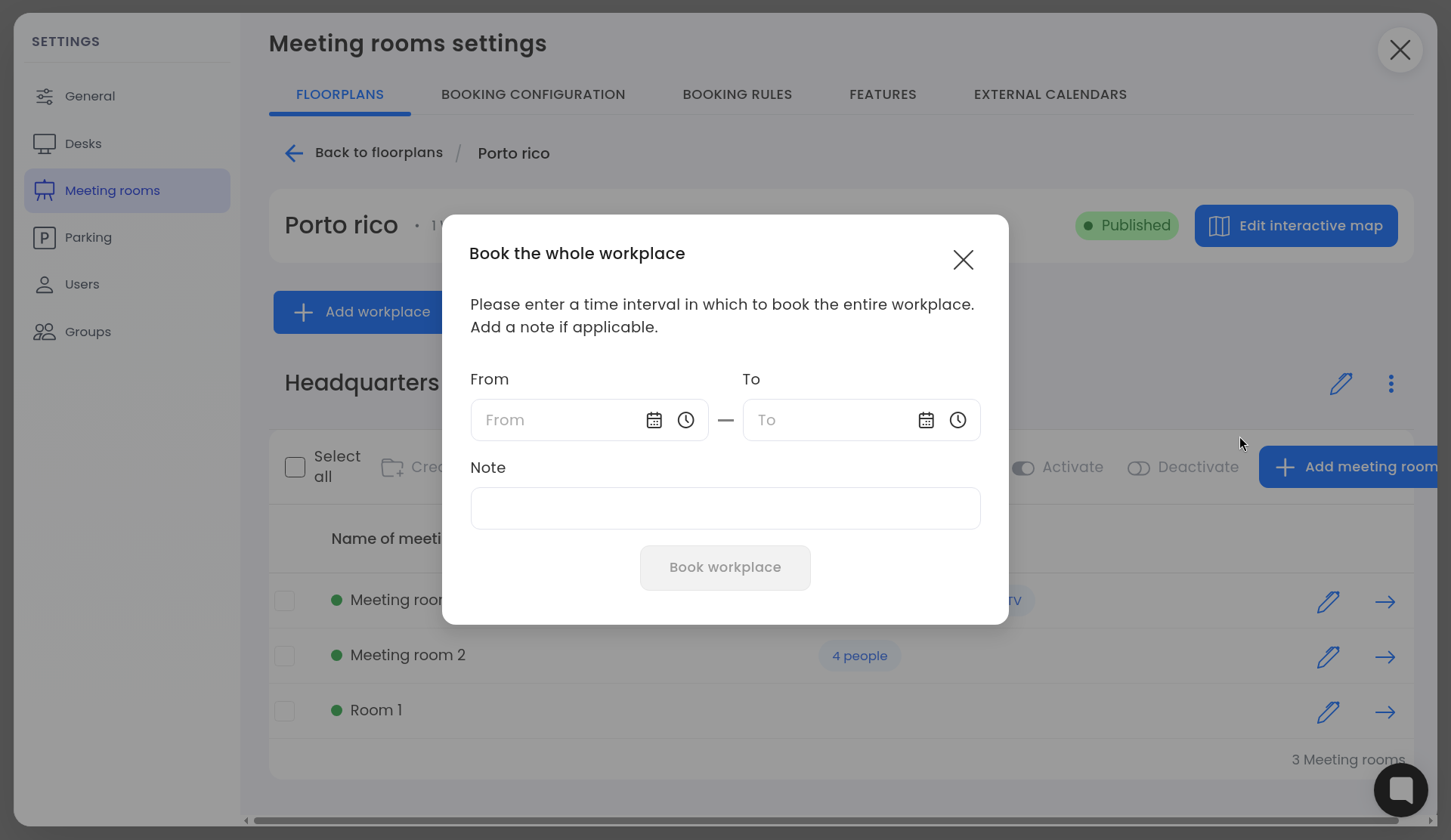
Book the workplace: Choose Book workplace.
Set the interval: In the Book the whole workplace dialog, enter From and To. Add an optional Note. The helper text is: "Please enter a time interval in which to book the entire workplace. Add a note if applicable."
Confirm: Click Book workplace. The button stays unavailable until From and To are filled.
The dialog does not ask who the booking is for. It books the whole workplace for that time interval.
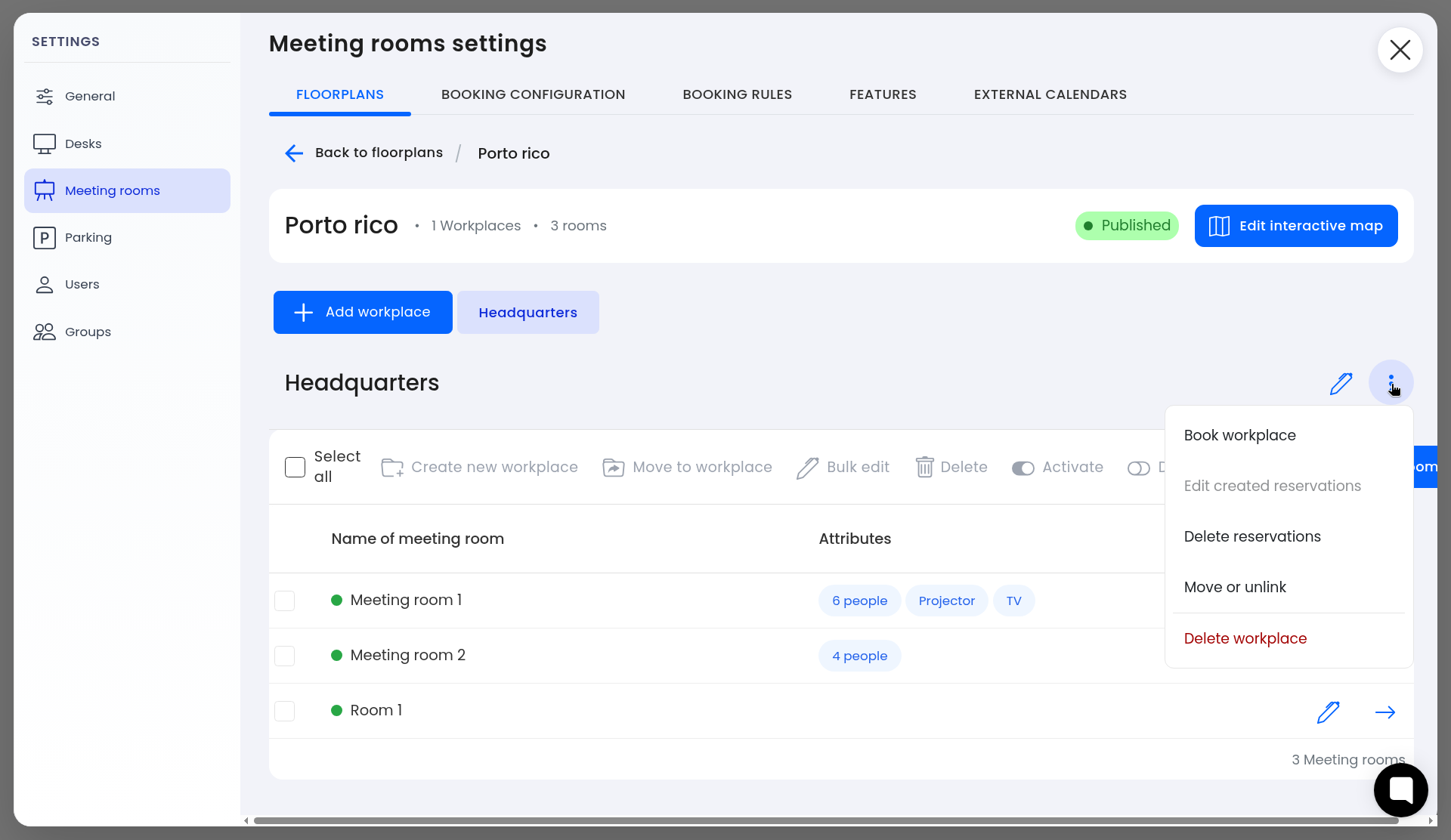
The same ⋮ menu also includes Edit created reservations, Delete reservations, Move or unlink, and Delete workplace.
Catering is requested as a service when someone books a meeting room. It is not a separate food-ordering catalog.
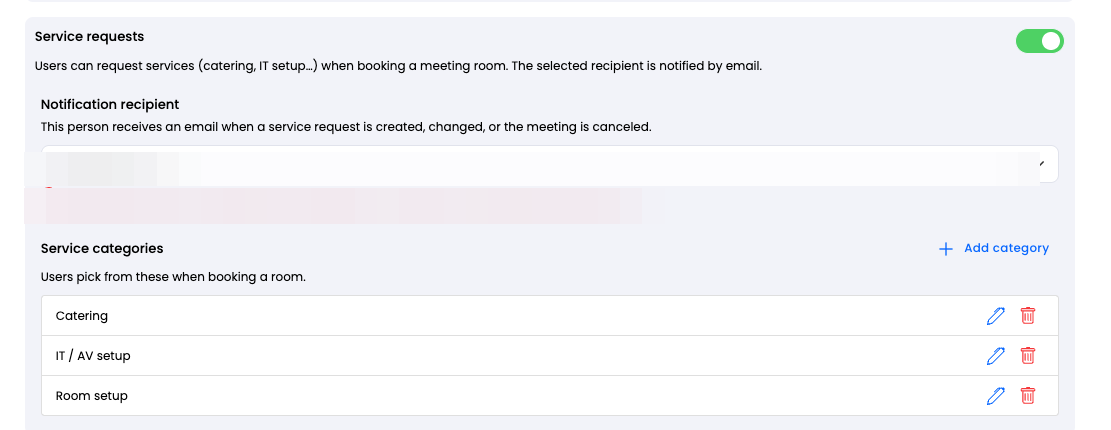
In Meeting rooms settings, Service requests lets users request services (catering, IT setup, and more) while booking. The notification recipient receives an email when a service request is created, changed, or the meeting is canceled.
Service categories are what users pick from on the booking form. Catering, IT / AV setup, and Room setup are there by default. You can add more categories with + Add category.
On the booking form this appears as I need services for this meeting. See How to book a meeting room.
You cannot charge a meeting room reservation by card or another payment method.
If you need to limit how much people book, use monthly credits instead. See Managing monthly booking limits (credits) for meeting rooms.
