When check-in is enabled for desks, the Reservations overview report includes a No-show rate and a count of missed check-ins. This article covers desk reports only.
No-shows are recorded only when check-in is turned on. To turn it on, go to Settings → Desks → Features and enable Check In & Out. You can also turn on Automatically cancel reservations with incomplete check in. For how check-in works, see How to use check-ins.
Go to Reports → Desks.
Open the Reservations overview tab.
Check the No-show rate card. It shows the percentage and the number of Missed check-ins for the selected timeframe. The default timeframe is Today.
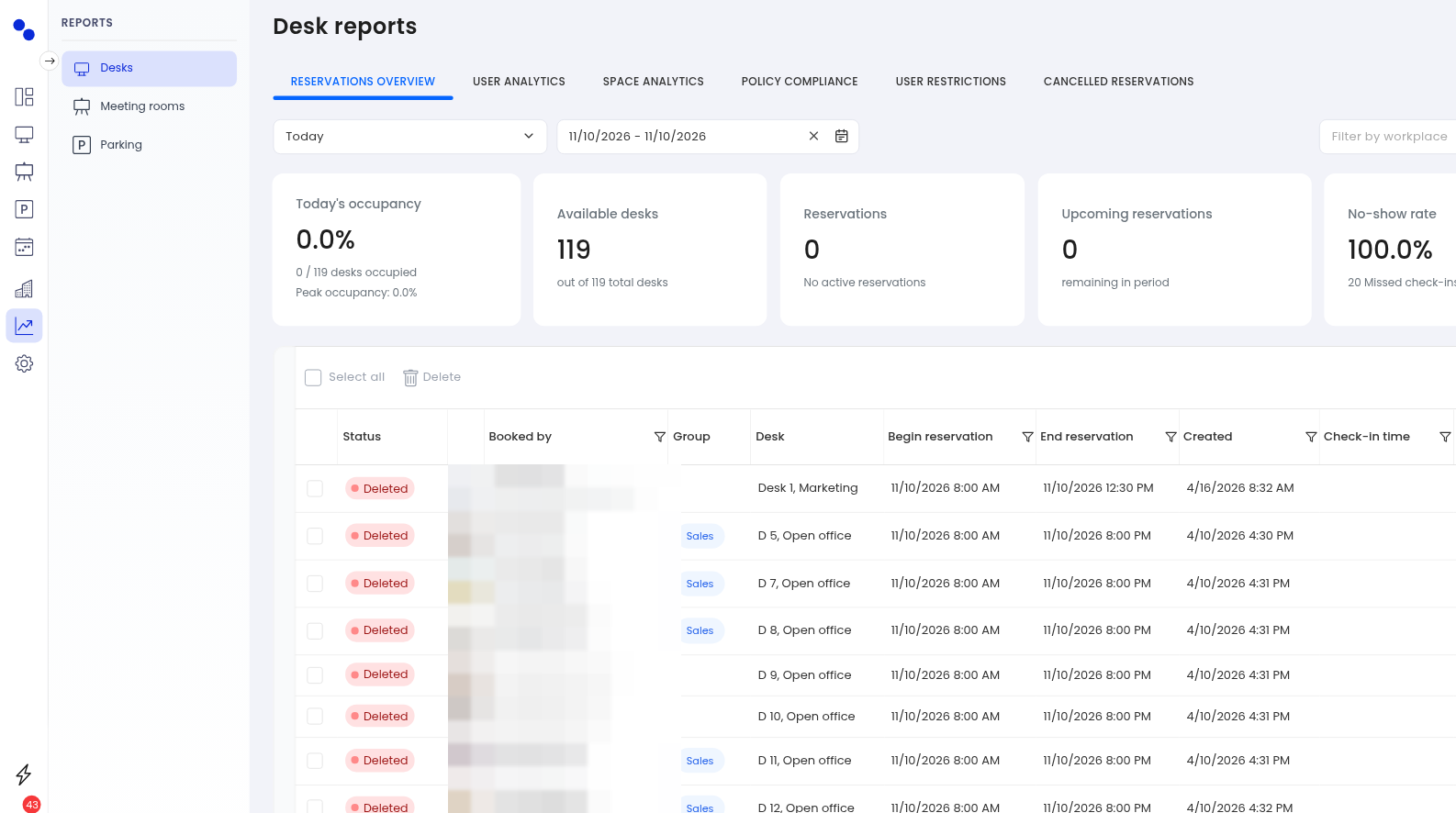
The table includes a Check-in time column. A blank check-in time means the person has not checked in.
Click the filter icon on the Check-in time column.
In Filter Operator, choose Null.
Click Filter.
To list only reservations that were checked in, choose Not Null instead.
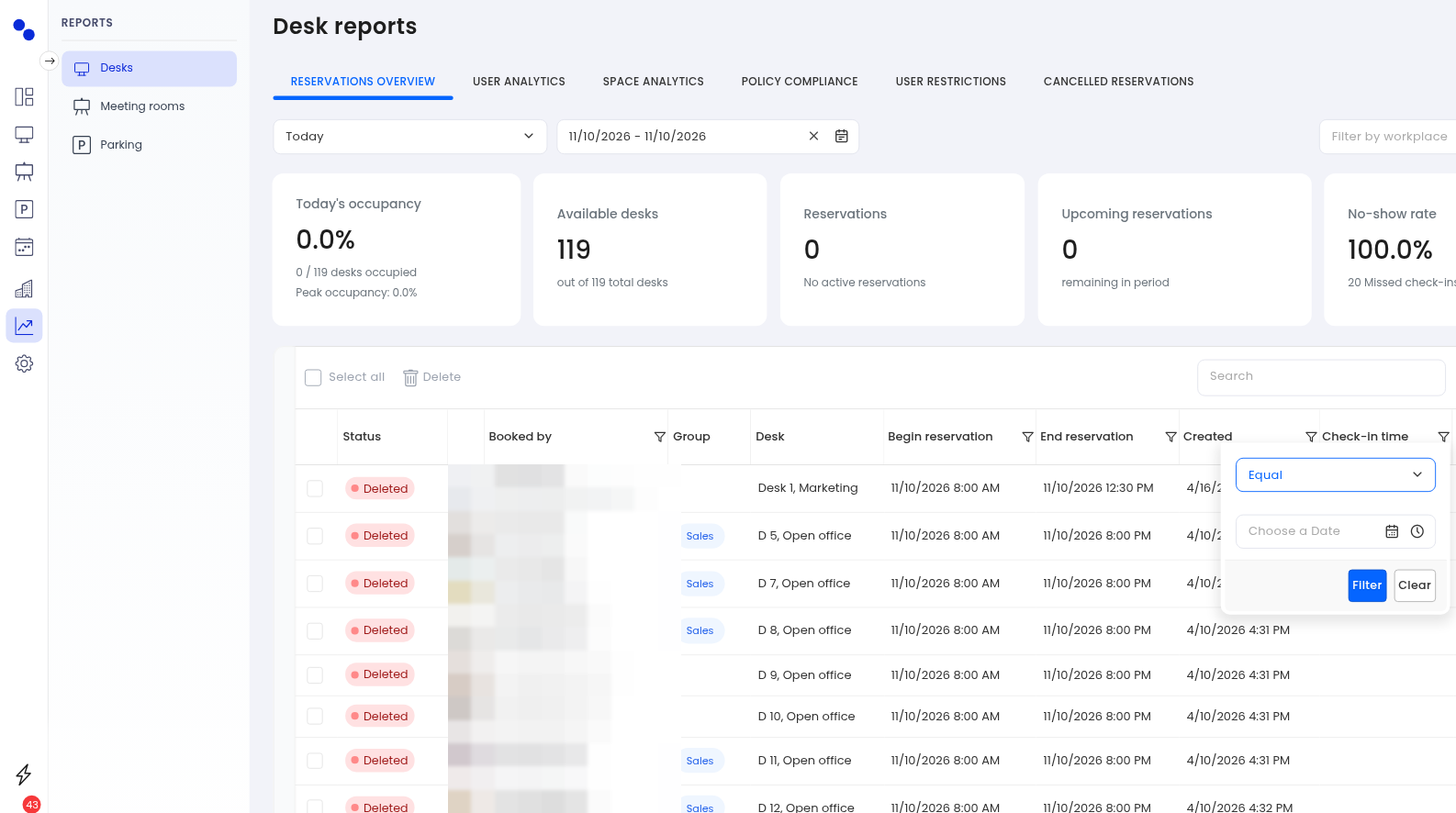
You can also narrow the list with:
The timeframe or date range at the top of the report
Filter by workplace
The search box in the table
Open the ellipsis menu on the table (the three-dot menu).
Choose Excel export or CSV export.
For a related view, open the Policy compliance tab. It includes a Check-in rate and a Checked in column.
Related articles:
