This article covers SAML single sign-on, including Okta, and SCIM user provisioning. For Google or Microsoft login, or for turning Microsoft Entra ID on yourself, see the related articles at the end.
Dibsido supports these sign-in methods:
Email & password
Sign-in code by e-mail (mobile app)
Microsoft
Microsoft Teams
Microsoft Entra ID
Custom SAML
Okta
A company Okta tenant, and other SAML identity providers such as OneLogin or Google Workspace, are connected through Custom SAML.
SAML single sign-on and SCIM user provisioning are available on paid plans, including Trial. They are not available on the Free plan.
Only administrators can open Settings → Users. Operators do not see this page.
You can turn on Microsoft Entra ID yourself. See How to activate Microsoft Entra ID login for Dibsido. Custom SAML and Okta stay greyed out until Dibsido support enables them for your company.
Go to Settings → Users.
Open the Settings tab. Login management is a section on this tab, not a tab of its own.

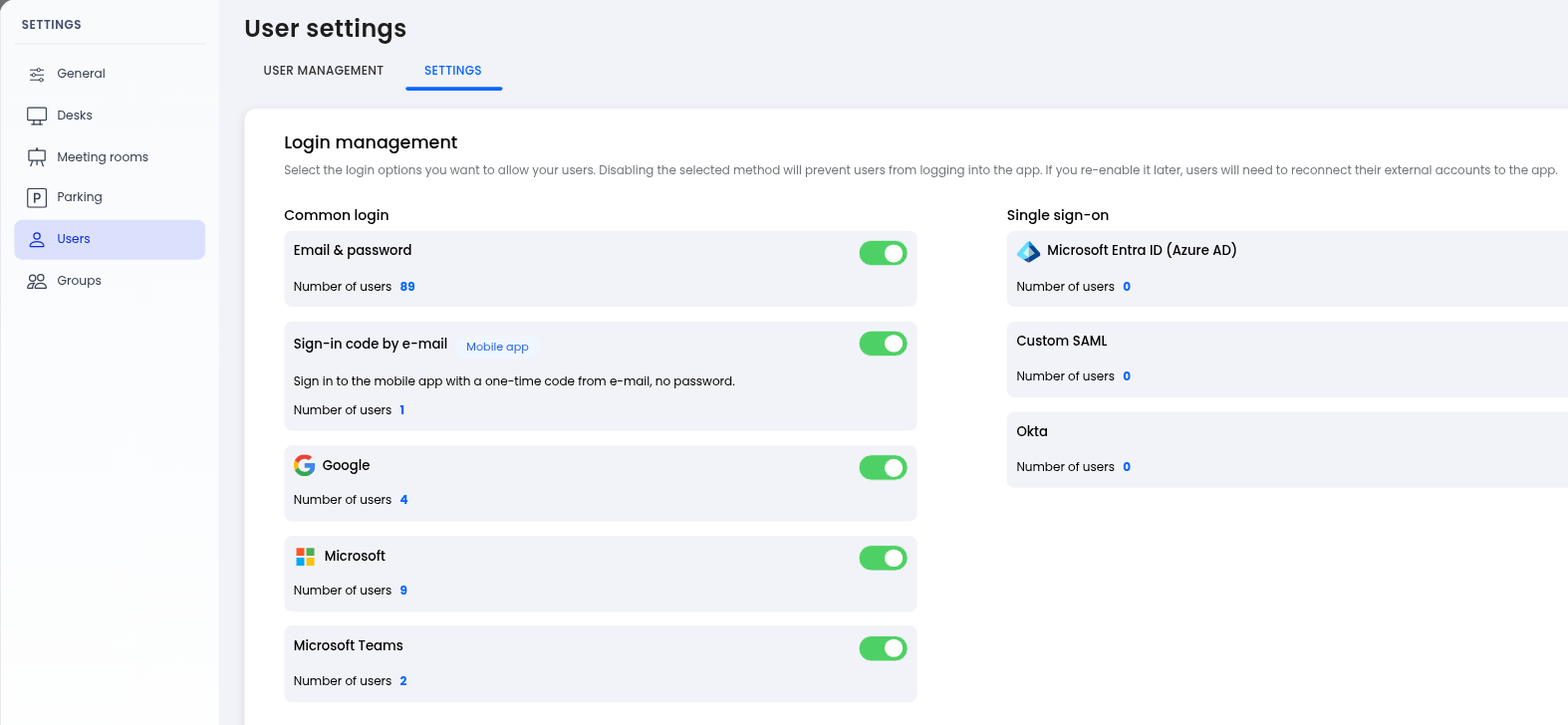
If you cannot see Login management:
You must be an administrator. Operators do not see Settings → Users.
Your company must not be on the Free plan. The Settings tab is shown on paid plans, including Trial.
Open the Settings tab. The heading Login management is inside that tab.
Use these steps to connect Okta, OneLogin, Google Workspace, or another SAML identity provider.
Contact Dibsido support and ask them to enable Custom SAML for your company.
Send them the following values. They are entered manually. Dibsido does not import a metadata URL.
IdP Entity ID
SSO URL
SLO URL (optional)
Signing certificate (base64)
A second certificate for rotation (optional)
The email domains that should use SAML
In your identity provider, create a SAML application for Dibsido and enter these values:
Entity ID (Audience / SP Entity ID): https://app.dibsido.com/Saml2
ACS URL (Reply URL), HTTP-POST binding: https://app.dibsido.com/Saml2/Acs
SP metadata: https://app.dibsido.com/Saml2/Metadata
SAML assertions must be signed. Dibsido signs its authentication requests.
Assign the users who should sign in to Dibsido.
Test the sign-in.
SAML does not create users automatically. If someone signs in with SAML and does not yet exist in Dibsido, sign-in fails with an error that the user is not invited. Users must exist first: by invitation, CSV import, or SCIM. The most convenient option is SCIM in silent mode, described below.
Ask Dibsido support to enable SCIM for your company, if it is not enabled yet.
Go to Settings → Users → Settings tab.
Under User management, find SCIM provisioning and click Manage. The Manage button appears only after support has enabled SCIM. Until then, the page asks you to contact support.

In the dialog, copy the base URL and generate a token.
Base URL: https://app.dibsido.com/scim/v2
The token is shown only once. Store it safely. You can revoke it, and you can generate a new one if it is lost.
In your identity provider, set up SCIM provisioning with that base URL and token.
Turn off group provisioning or group mapping in the identity provider. Dibsido syncs users only, not groups.
What is synced for each user:
Email, used as userName
First name
Last name
Active status
To deactivate a user, set active to false or send a DELETE. DELETE removes a user completely only if they have never signed in. Everyone else is only deactivated.
There are two provisioning modes:
Default: each new user receives an email invitation.
Silent mode: the user is created without an email and finishes registration on their first SSO sign-in. Silent mode is available only when SSO is enabled for the company.
SCIM has been tested with Microsoft Entra ID.
Login methods apply to the whole company. You cannot turn a method off for selected users only.
SAML and email sign-in can run at the same time.
Warning: turning off Email & password removes the passwords of all users in the company. If you turn it back on, everyone must set a new password.
Related articles:
